How To Video Stream With VDJ
Our Low Latency Live Stream Server Is Best For Djs, Artists, Events, Sports, Gamings, Radio Stations, Tv Stations, Conferences, Training, Surveillance, Monitoring! Create A Radio Station Or Tv Station And Connect With Your Audience Anywhere, Anytime And On Any Device! We Designed Real Time Live Stream Server For Broadcasts Where Interactivity Is Essential! Sub One Second Live Streaming! Scale Up To A Million Viewers And Listeners Using Top Cloud Provider!
For good results please use our applications tried by many djs which can be downloaded here:
CLICK FOR DOWNLOAD
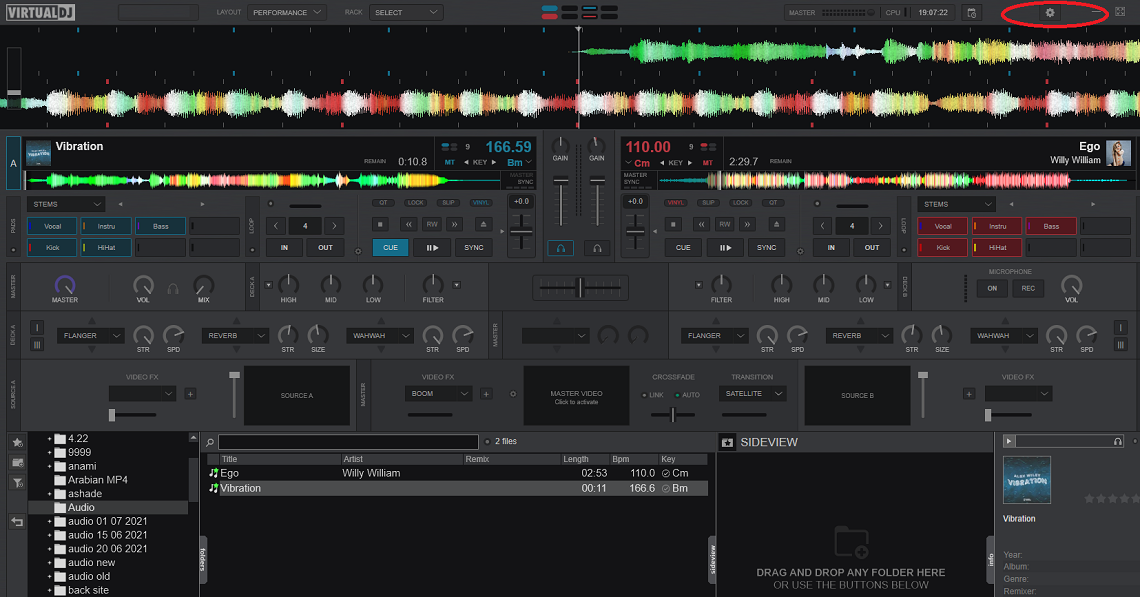
Start VirtualDJ on your computer and click on settings button
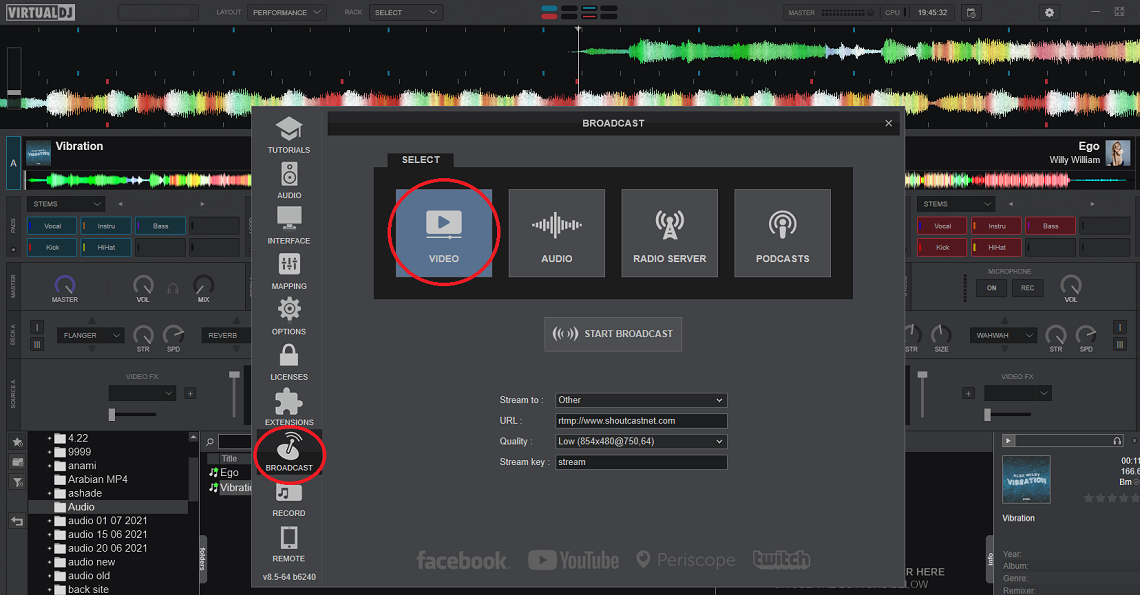
Click on broadcast and on video server
GET YOUR FREE SERVER
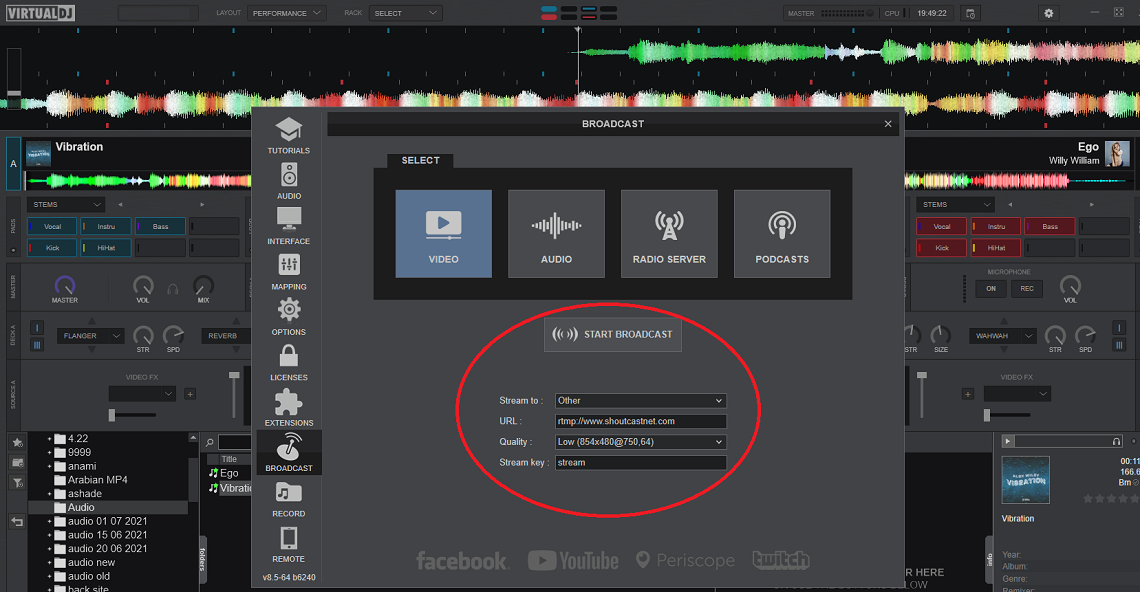
Configure your virtualdj application with data:
STREAM TO: OTHER
SERVER URL: rtmp://www.shoutcastnet.com
QUALITY: low
STREAM KEY: stream
Click on START BROADCAST and close the configuration window
GET YOUR FREE SERVER
VirtualDJ RTMP Video Streaming Troubleshooting
RTMP Connection Failed
Error: "Cannot connect to video server" or "RTMP handshake failed"
Solutions:
- Server URL Format: Ensure you're using the correct RTMP URL format:
rtmp://your-server.shoutcastnet.com - Stream Key: Verify your stream key matches what's in your Shoutcast.net video control panel
- Port 1935: RTMP uses port 1935 - check your router/firewall allows outbound connections on this port
- Stream To Option: Select "OTHER" (not Facebook, YouTube, or Twitch)
- SSL/TLS: Use "rtmp://" not "rtmps://" unless specifically provided by your server
Video Showing But No Audio
Problem: Viewers see video but can't hear music or microphone
Solutions:
- Audio Device: Go to Settings > Audio Setup - ensure your sound card is selected (not "None")
- Master Output: Check master volume isn't muted in VirtualDJ interface
- Audio Encoding: Verify "Send Audio" is enabled in broadcast settings
- Microphone: If using mic input, enable "Master Mic" in VirtualDJ settings
Low Quality or Pixelated Video
Problem: Stream looks blurry or choppy to viewers
Solutions:
- Quality Settings: Change from "low" to "medium" or "high" in broadcast settings
- Internet Speed: Video streaming requires 3-5 Mbps upload minimum - test at fast.com
- Wired Connection: Use Ethernet cable instead of WiFi for stable video upload
- Resolution: For 720p HD, you need at least 2500 kbps upload speed
- Bitrate Calculator: Use our bitrate calculator to find optimal settings for your connection
Video Lag or Buffering Issues
Problem: Stream freezes or buffers every few seconds
Solutions:
- Close Background Apps: Stop Chrome, Discord, OBS, or other programs using your GPU/CPU
- Graphics Card: Ensure your GPU drivers are updated (NVIDIA/AMD website)
- Lower Quality: Temporarily reduce quality setting to maintain stable connection
- Monitor CPU Usage: If CPU is at 100%, close unnecessary processes or upgrade hardware
Windows 10/11 Video Streaming Optimization
Get best performance for nightclub/event video streaming:
- GPU Acceleration: Enable hardware acceleration in VirtualDJ video settings
- Windows Updates: Keep Windows 10/11 updated for latest DirectX and graphics improvements
- Power Settings: Set to "High Performance" or "Ultimate Performance" mode
- Dedicated Graphics: On laptops with dual GPUs, force VirtualDJ to use dedicated GPU (not integrated)
- Background Recording: Disable Windows Game Bar DVR (Settings > Gaming > Captures)
Live event tonight? Get instant help from our video streaming experts.
Emergency Support AvailableTRY VIDEO STREAMING FREE
Polish your hybrid show plan
Walk through bitrate ladders, overlays, and monetization ideas inside our detailed blog article, then keep browsing the How-To Library for more encoder guides.