How To Stream With MIXXX
Our Low Latency Live Stream Server Is Best For Djs, Artists, Events, Sports, Gamings, Radio Stations, Tv Stations, Conferences, Training, Surveillance, Monitoring! Create A Radio Station Or Tv Station And Connect With Your Audience Anywhere, Anytime And On Any Device! We Designed Real Time Live Stream Server For Broadcasts Where Interactivity Is Essential! Sub One Second Live Streaming! Scale Up To A Million Viewers And Listeners!
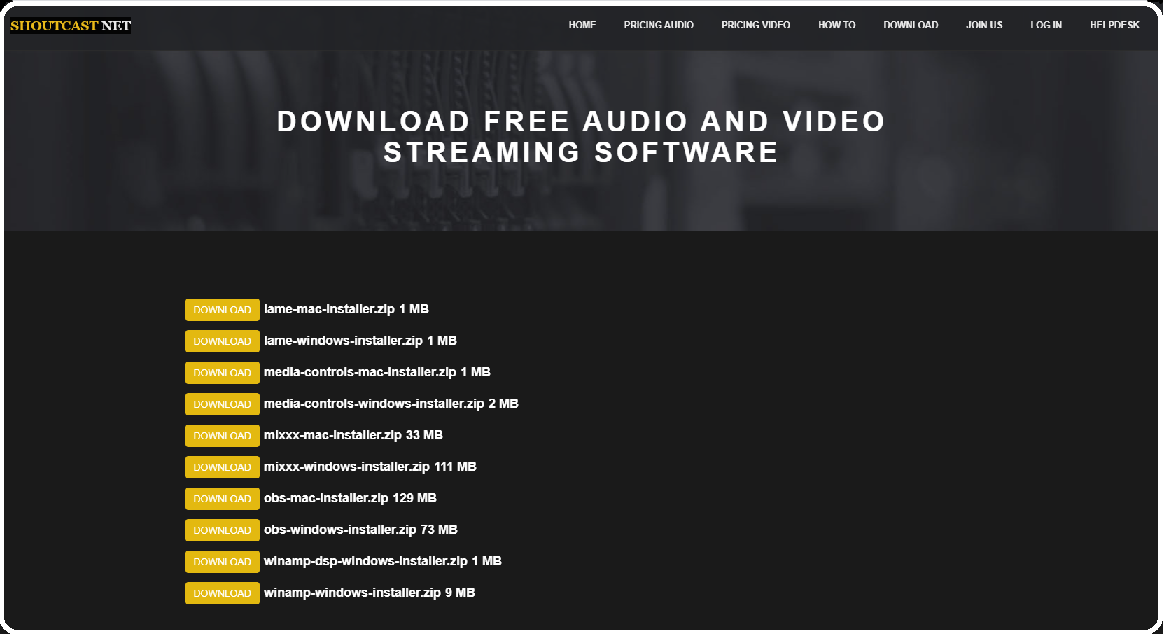
For good results please use our applications tried by many djs which can be downloaded here:
CLICK FOR DOWNLOAD
In your web browser chrome or firefox navigate to the link above
Download mixxx for windows or mac and install on computer
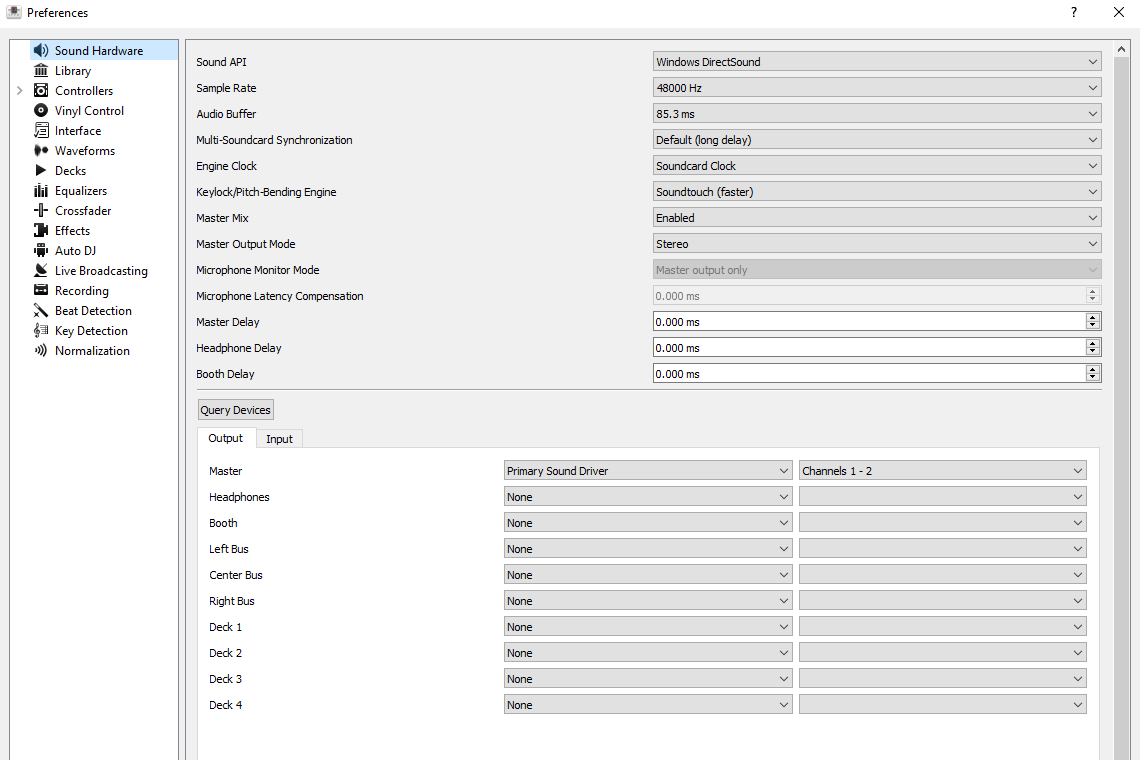
Start Mixxx on your computer and click on options and preferences
On sound hardware tab set sample rate to 48000 Hz and audio buffer to 85.3 ms
GET YOUR FREE SERVER
Click on live broadcasting tab and set your custom data:
TYPE: SHOUTCAST
HOST: your host
LOGIN: must be emty
MOUNT: must be emty
PORT: your port
PASS: your pass
BITRATE: 96 - 320 kbps
FORMAT: MP3
CHANNELS: stereo
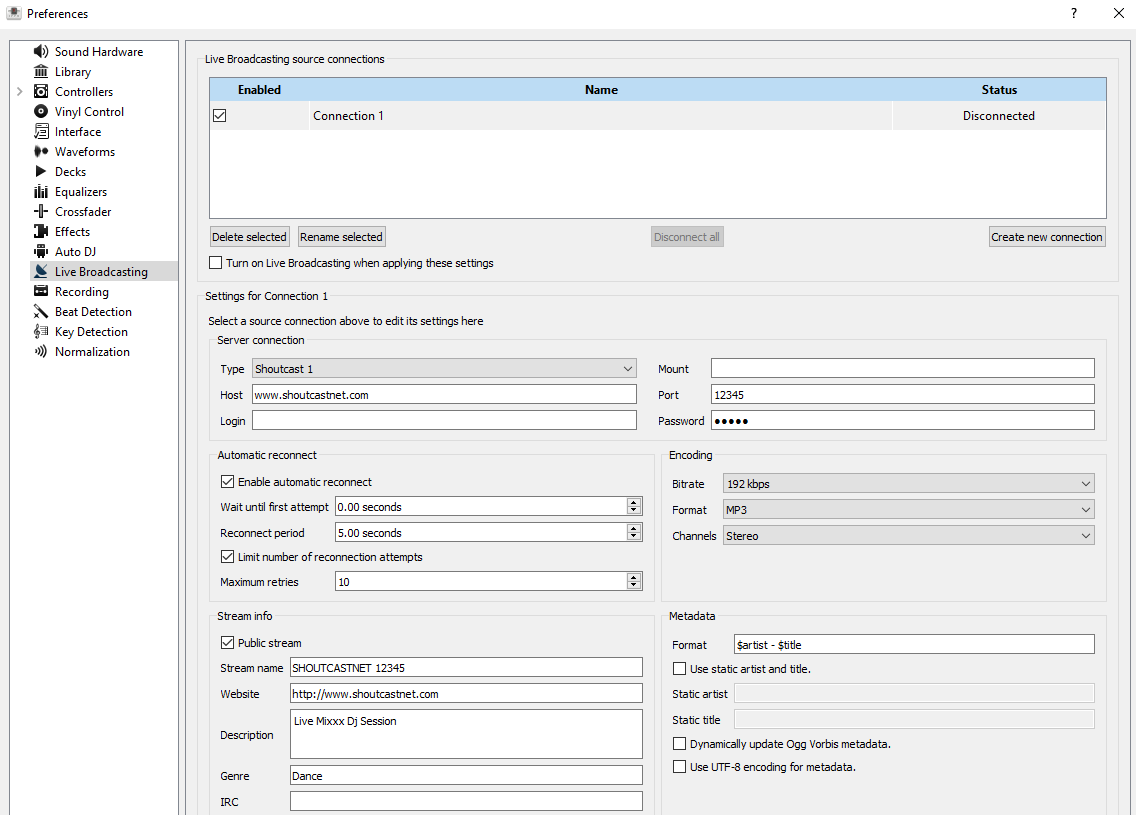
Click on Apply and click On OK. Add your media to Mixxx playlist
Click on Options and on Enable Live Broadcasting for start streaming
Open your web browser and visit your stream url for listen your media
Common Connection Errors & Solutions
Can't Connect to Streaming Server
Error: "Connection to streaming server failed" or "Mixxx cant connect"
Solutions:
- Check Hostname: Use your exact server hostname (e.g., stream.shoutcastnet.com), not an IP address with port
- Verify Port: Ensure you're using the correct streaming port (not the listening port)
- Empty Mount Point: For Shoutcast servers, the MOUNT field must be completely empty (not "/" or "/stream")
- Empty Login: The LOGIN field should also be empty for Shoutcast
- Firewall: Check your Windows Firewall or antivirus isn't blocking outbound connections on your streaming port
Authentication Failed
Error: "Could not connect to server: Authentication failed"
Solutions:
- Password Verification: Copy-paste your password from your Shoutcast.net control panel to avoid typos
- Special Characters: If your password has special characters like @, #, %, ensure they're entered correctly
- Reset Password: Log into your Shoutcast.net account and reset your streaming password
Stream Starts But No Audio
Problem: Connection successful but listeners can't hear anything
Solutions:
- Audio Input: Check Options > Preferences > Sound Hardware - ensure correct audio input device is selected
- Master Deck: Make sure you've loaded tracks in both decks and the crossfader is centered
- Bitrate Too Low: Use our Bitrate Calculator - recommend minimum 128kbps for music
- Metadata: Enable "Send metadata" in Live Broadcasting settings so track info displays
Connection Drops Randomly
Problem: Stream disconnects after a few minutes
Solutions:
- Stable Internet: Use wired Ethernet instead of WiFi for broadcasting
- Lower Bitrate: If your upload speed is slow, reduce bitrate to 96kbps or 128kbps
- Close Background Apps: Stop other programs using internet (torrents, cloud sync, video calls)
- Update Mixxx: Download the latest version from mixxx.org
Still having issues? Our support team can help diagnose your Mixxx configuration.
Contact 24/7 SupportGET YOUR FREE SERVER
Keep your Mixxx station optimized
Review bitrate recommendations, metadata tips, and pricing options in the Mixxx-focused blog, then bounce back to the How-To Library for more encoder walkthroughs.