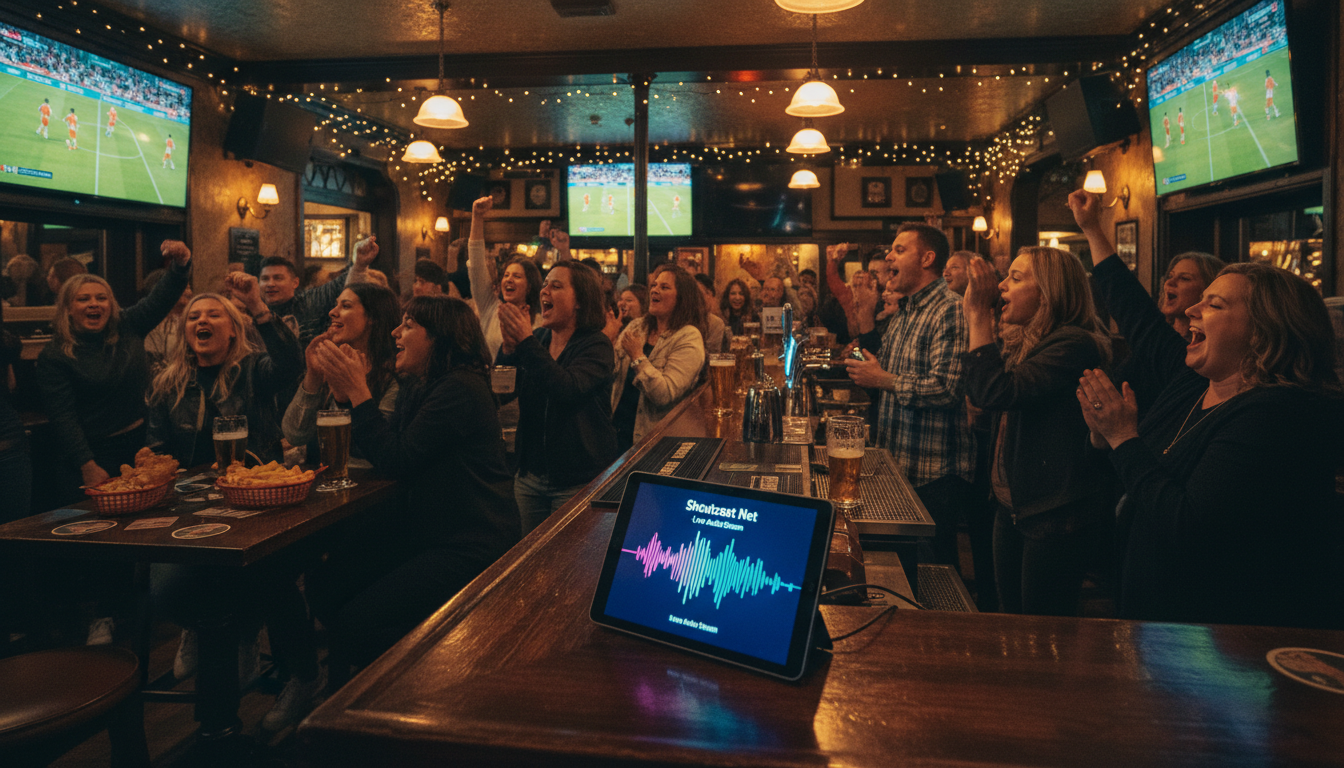
Tired of exorbitant commercial satellite bills, ugly dishes cluttering your roof, and signal dropouts during the worst possible moments of the game? For restaurant and bar owners, providing a flawless sports viewing experience is non-negotiable. But traditional satellite and cable solutions are often inflexible, expensive, and prone to issues like rain fade.
There's a better way. By creating your own internal IPTV (Internet Protocol Television) system, you can take a single, legally-acquired sports feed and distribute it in crystal-clear HD to every TV in your venue over your existing computer network. No more splitters, signal boosters, or a separate cable box for every screen. You gain unparalleled control, reliability, and can significantly cut down on monthly costs.
This guide will walk you through the entire process, step-by-step. We'll show you how to build a professional-grade, private sports streaming network for your establishment using a powerful, affordable streaming server from Shoutcast Net. It's easier than you think, and the results are a game-changer.
Why IPTV Beats Satellite for Bars
IPTV stands for "Internet Protocol Television." In this context, it doesn't mean those shady, illegal streaming services. It refers to the method of distributing video over a computer network (like the internet or your bar's local network). Think of it as creating your own private, in-house Netflix. You take one source feed—like the HDMI output from your main, commercially-licensed cable box—and broadcast it to an unlimited number of screens within your venue.
The heart of this system is a video streaming server, which acts as a central distribution hub. While legacy platforms like Wowza have offered this for years, they come with complex, expensive billing based on usage, which can be disastrously unpredictable during a major sporting event. Shoutcast Net revolutionizes this with a simple, flat-rate monthly price and unlimited bandwidth. You get all the power without the financial uncertainty.
IPTV via Shoutcast Net vs. Commercial Satellite
| Feature | IPTV System (with Shoutcast Net) | Traditional Commercial Satellite |
|---|---|---|
| Cost Structure | Fixed monthly fee (e.g., $16/mo for 100 TVs). Predictable and scalable. | High base fee + per-receiver/per-TV monthly charges. Costs escalate quickly. |
| Reliability | Immune to weather ("rain fade"). As reliable as your internet connection. 99.9% uptime with Shoutcast Net servers. | Vulnerable to heavy rain, snow, and wind, causing signal loss at critical moments. |
| Hardware | One encoder, one server, and low-cost players for each TV. No external dish. | Large, unsightly satellite dish. A separate, bulky receiver box for every TV. |
| Control & Flexibility | Full control. Insert your own logos, ads, or pre-game hype videos. Stream any content you have rights to. | Locked into the provider's channel package and hardware. No customization. |
| Latency | With proper configuration, achieve very low latency 3 sec streaming, keeping your patrons in sync with the live action. | Can have significant delays (10-30 seconds) compared to terrestrial broadcast. |
Pro Tip: Think Beyond Sports
Once your IPTV system is in place, it's not just for sports. You can use it to stream your own content for special events. Host a trivia night and display questions on all screens. Run a slideshow of food and drink specials. Even stream a live DJ set playing in the corner to every TV. Your IPTV network becomes a powerful marketing and entertainment tool for your entire venue.
Choosing Your Streaming Hardware (Encoder)
The first piece of the puzzle is the encoder. This is a small but crucial device that captures your video and audio source and "encodes" it into a format suitable for streaming over the internet to your Shoutcast Net server.
Your source will typically be the HDMI output from a cable box, satellite receiver, or a computer. The encoder takes this HDMI signal in, processes it, and sends it out over an ethernet cable to the internet.
Hardware vs. Software Encoders
For a commercial environment like a bar or restaurant, a dedicated hardware encoder is almost always the best choice. These are purpose-built boxes designed for 24/7 operation. They are stable, reliable, and "set-and-forget."
- Hardware Encoders (Recommended): Brands like URayCoder, Orivision, or Kiloview offer excellent, affordable HDMI encoders. You simply plug in your HDMI source and an ethernet cable, configure it once via a web browser, and it runs continuously.
- Software Encoders: A program like OBS Studio (Open Broadcaster Software) can turn a computer into an encoder. It's incredibly powerful and free, but it requires a dedicated PC to run it. This can introduce issues with Windows updates, crashes, or accidental closures, making it less ideal for a critical commercial setup.
Key Encoder Features to Look For
- HDMI Input: This is essential for capturing the signal from your source device.
- RTMP or SRT Protocol Support: These are the most common streaming protocols. RTMP is the classic standard, while SRT (Secure Reliable Transport) is excellent for maintaining a stable stream even over less-than-perfect internet connections. Shoutcast Net supports both and more.
- H.264 (AVC) Video Compression: This is the most widely supported video codec, ensuring compatibility with virtually any playback device.
- Stable Power and Network Port: Look for a device with a reliable power adapter and a standard RJ45 ethernet port.
Pro Tip: Invest in Reliability
While it might be tempting to use an old laptop with OBS, the small investment in a dedicated hardware encoder (often just a few hundred dollars) will pay for itself in reliability. The last thing you want is a blue screen of death during the final minutes of a championship game. A hardware encoder eliminates that entire class of problems.
Setting Up Your Shoutcast Net Video Server
Your encoder is the starting point, and your TVs are the destination. The Shoutcast Net video server is the powerful, reliable engine in the middle that makes it all work. It receives the single stream from your encoder and effortlessly duplicates and delivers it to every TV that requests it, ensuring a smooth, synchronized picture across your entire venue.
This is where Shoutcast Net's value truly shines. Unlike platforms like Wowza which bill per-viewer or per-hour, our model is simple: a flat monthly rate with unlimited bandwidth. For a bar with 15, 30, or even 100 TVs, this means you can stream the entire game day without ever worrying about a surprise bill. Your costs are fixed and predictable.
Here’s how to get your server running in minutes:
- Visit the Shop: Navigate to the Shoutcast Net Shop.
- Choose a Video Plan: Scroll down to the "Video Streaming" plans. Our plans are based on the number of concurrent viewers (in this case, TVs).
- Video 100 ($16/mo): Perfect for venues with up to 100 TVs.
- Video 500 ($32/mo): For larger venues or multi-site distribution.
- Video 1000 ($64/mo): For major event centers and large-scale deployments.
- Sign Up for a Free Trial: Select your plan and proceed to checkout. Every plan comes with a full-featured 7 days trial, so you can test your entire setup risk-free.
- Access Your Control Panel: After signing up, you'll receive login details for the Centova Cast or VDO Panel. This is where you'll find your unique server information needed to configure your encoder.
The key pieces of information you'll need are your Server URL and Stream Key. Keep this page open; you'll need it in the next step.
Pro Tip: Don't Forget Audio!
Your IPTV system handles video, but what about your house audio? You can use a separate Shoutcast hosting plan (starting at just $4/month) to manage your background music. Use our powerful AutoDJ feature to create playlists for pre-game, post-game, and commercial breaks, ensuring a seamless audio experience that you control completely.
Configuring Your Encoder Settings
Now it's time to connect your encoder to your new Shoutcast Net server. This involves logging into your hardware encoder's web interface (by typing its IP address into a browser on the same network) and inputting the server details from your control panel.
While the interface will vary by manufacturer, the settings are universal. You'll be looking for a section labeled "Encoding Settings," "Stream Settings," or "Publishing."
Main Stream Settings (RTMP Example)
You'll need to input the Server URL and Stream Key you got from the Shoutcast Net control panel. Here is what the settings typically look like for the RTMP protocol:
Stream Type:         RTMP Push
RTMP Server URL:     rtmp://your-server-ip:1935/live
Stream Key/Name:     your-stream-key
Simply copy and paste the values from your Shoutcast Net panel into the corresponding fields in your encoder. Our platform is incredibly flexible, allowing you to stream using any stream protocols to any stream protocols (RTMP, RTSP, WebRTC, SRT, etc). If your encoder supports SRT for better reliability, you can use the SRT URL and port provided in your panel instead.
Video & Audio Encoding Settings
Next, you'll configure the quality of your stream. For a local network distribution, you can use higher quality settings.
- Video Codec: H.264 (or AVC). This offers the best compatibility.
- Video Bitrate: For 1080p HD, a bitrate between 3000-6000 kbps is excellent. For 720p, 1500-4000 kbps is sufficient.
- Resolution: Match your source. If your cable box outputs 1080p, set the encoder to 1920x1080.
- Keyframe Interval (GOP): Set this to 2 seconds. This is critical for ensuring players can start the stream quickly and for smooth seeking.
- Audio Codec: AAC. It's the standard for video streaming.
- Audio Bitrate: 128 kbps is good, 192 kbps is excellent for stereo sound. Our plans support up to 320 kbps audio for pristine quality.
Once you've entered these settings, save and apply them. The encoder should now start streaming to your Shoutcast Net server.
Pro Tip: Check Your Upload Speed
Your business internet plan's upload speed is what matters for the encoder. A single 1080p stream at 4000 kbps (4 Mbps) requires at least 5-6 Mbps of stable upload bandwidth. Run a speed test to ensure your connection can handle it. The download speed is irrelevant for the encoder but is important for your patrons using Wi-Fi.
Connecting Your Smart TVs or Set-Top Boxes
With your stream now flowing to the Shoutcast Net server, the final step is to tell your TVs how to access it. Each screen needs a "player" capable of playing an HLS or MPEG-DASH stream. This is where the magic of Shoutcast Net's ability to stream from any device to any device comes into play. You're broadcasting in a standard format that modern devices can easily understand.
In your Shoutcast Net control panel, you will find your "Playback URL" or "HLS URL." It will look something like this:
http://your-server-ip/live/your-stream-key/playlist.m3u8This is the link you will use for all your TVs.
Option 1: Modern Smart TVs
If your bar is equipped with modern Smart TVs (especially those running Android TV, Google TV, or Tizen OS), you may be able to install a player app directly. Go to the TV's app store and search for an app like "VLC," "IPTV Smarters," or another generic "IPTV Player." Once installed, open the app, find the option to "Add Stream from URL" or "Play Network Stream," and enter the HLS playback URL from your control panel.
Option 2: External Set-Top Boxes (Recommended)
For a more consistent, manageable, and often higher-performing setup, using inexpensive external media players is the best route. Devices like the Chromecast with Google TV, Xiaomi Mi Box S, or even a basic Amazon Fire TV Stick can be plugged into any TV's HDMI port.
The process is simple:
- Connect the set-top box to the TV's HDMI port and your Wi-Fi network.
- From its app store, install a reliable video player like VLC for Android/FireOS.
- Open VLC, navigate to the "Streaming" or "Open Network Stream" section.
- Enter the HLS playback URL from your Shoutcast Net panel.
- The stream will begin playing. You can save it as a favorite for instant access later.
Pro Tip: Go Wired for a Flawless Picture
While Wi-Fi works, a crowded bar with dozens of patrons on their phones can create significant wireless interference. For mission-critical TVs showing the main game, consider using set-top boxes that have an ethernet port (or can add one via an adapter). A wired connection to your players is the ultimate guarantee of a buffer-free viewing experience for your customers.
Testing Your Live Sports Stream
Before game day, it's crucial to do a full end-to-end test of your system. Don't wait until five minutes before kickoff to discover a problem. Follow this simple checklist to ensure everything is ready for primetime.
- Power Up Everything: Turn on your source device (cable box), your hardware encoder, and at least one TV with its set-top box.
- Check the Source: Make sure the cable box is tuned to a channel and is outputting video and audio correctly via its HDMI port.
- Verify Encoder Status: Log in to your encoder's web interface. It should show an "online" or "streaming" status, indicating it's successfully connected to the Shoutcast Net server. Check the bitrate to ensure it's sending data.
- Check Server Status: Log in to your Shoutcast Net control panel. You should see your stream as "Online" and see metrics like current viewers and incoming bandwidth. This confirms the server is receiving your stream.
- Play the Stream: On your test TV, open your player app (like VLC) and load the HLS stream URL. The video and audio should start playing within a few seconds.
- Check for Latency: Watch the stream on your IPTV setup and compare it to the source on a directly connected monitor. Thanks to our optimized network, you can achieve very low latency 3 sec, which is vital for sports. This prevents patrons on their phones from spoiling a play before it happens on your screens.
Once you've confirmed it works on one TV, you can confidently set up the rest of your screens. The process is identical for each one.
Pro Tip: Create a QR Code for Easy Setup
Typing a long URL with a remote is tedious. Use a free online QR code generator to turn your HLS stream URL into a QR code. Many player apps (like VLC mobile) can scan a QR code to open a stream instantly. This can save you a massive amount of time when setting up dozens of TVs.
Legalities: Licensing & Blackout Rules
Disclaimer: The following is for informational purposes only and does not constitute legal advice. You are responsible for ensuring you have the legal rights to the content you broadcast. Consult with a legal professional specializing in media rights for specific guidance.
Building an internal IPTV system is a powerful technical solution, but it does not bypass content licensing requirements. It's crucial to understand the rules of the road to operate legally.
Public Performance Rights
Showing any television broadcast in a commercial establishment (a "public performance") requires a commercial license from the content provider. Your standard residential cable or satellite package does NOT grant you these rights. You must subscribe to a Business or Commercial TV plan from a provider like DirecTV for Business, Spectrum Business, or Comcast Business.
The IPTV system described in this guide is for internal distribution only. The source you feed into your encoder must come from a properly licensed commercial feed. You are simply replacing the provider's expensive per-TV boxes with a more efficient distribution method you control.
Consumer Streaming Services (ESPN+, Peacock, etc.)
Do not use consumer-grade streaming services as your source. The terms of service for platforms like ESPN+, Peacock, Hulu + Live TV, and YouTube TV explicitly prohibit public performance in a commercial setting. Using them in your bar is a violation of their terms and can lead to legal action.
Blackout Rules Still Apply
Your IPTV system does not magically bypass local or national sports blackouts. The system only rebroadcasts the source it's given. If a game is blacked out on your commercial cable or satellite package in your geographic area, it will be blacked out on your IPTV system as well.
The Golden Rule of Bar Streaming
Remember this simple rule: Your IPTV system is for distribution, not acquisition. You must first legally acquire the rights to show the content in your bar. Your private streaming setup is the tool you use to distribute that legally acquired content efficiently and reliably to your patrons.
Ditch the Dish. Take Control.
You now have a complete roadmap to building a modern, cost-effective, and reliable sports streaming system for your restaurant or bar. By leveraging a hardware encoder and a powerful Shoutcast Net video server, you can escape the high costs and unreliability of satellite while gaining full control over your venue's screens.
With our flat-rate pricing, unlimited bandwidth, and robust 99.9% uptime, you can stream every game with confidence. Plus, you can expand your system's use for house music with an Icecast or Shoutcast plan and our AutoDJ, or even Restream to Facebook, Twitch, YouTube for special events (see plan for details).
Ready to transform your customers' viewing experience?
Start Your 7 Days Trial Today