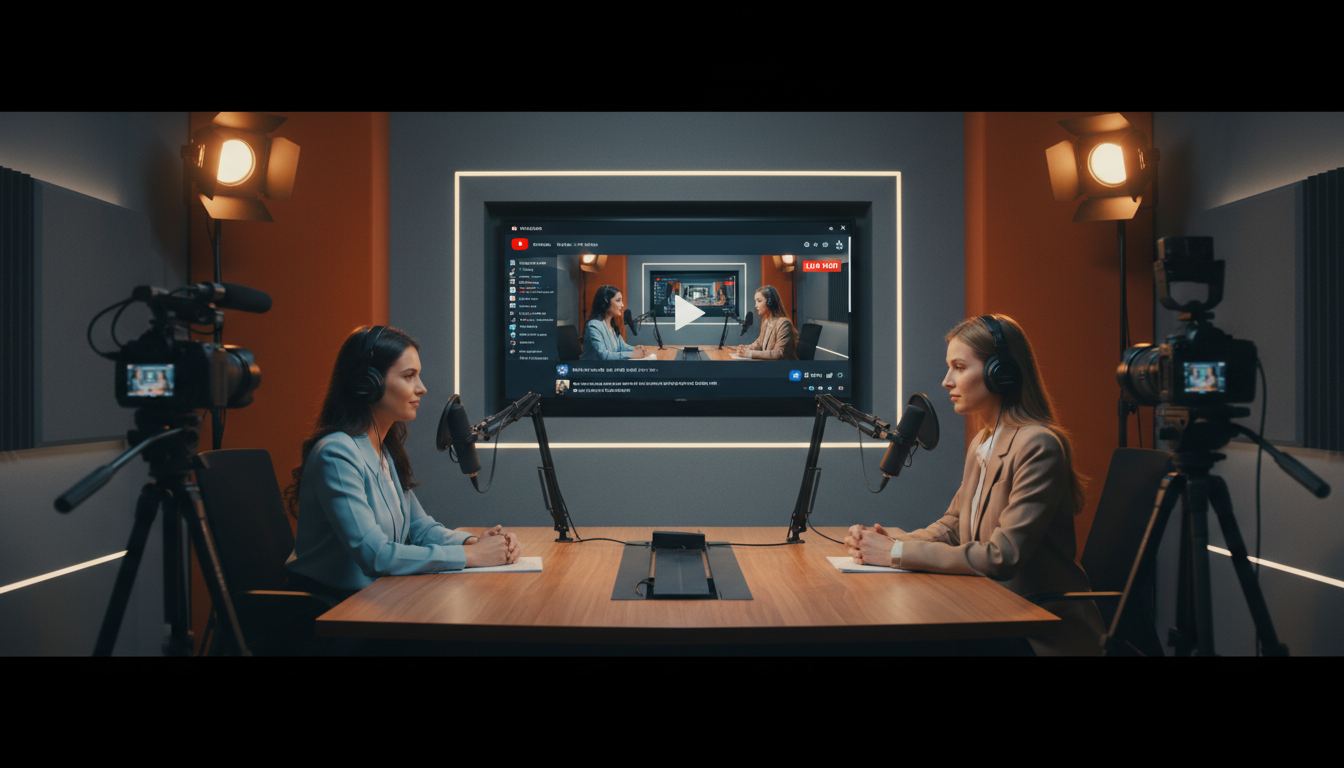
You've put in the work to create a compelling podcast. You have great audio, engaging content, and a growing audience. But in today's visual-first world, an audio-only format might be holding you back. YouTube, with its two billion logged-in monthly users, represents a colossal opportunity to expand your reach, build a stronger community, and create new revenue streams.
The solution? Simulcasting. By broadcasting your video podcast live to your own website and YouTube simultaneously, you tap into the best of both worlds: full control over your primary stream and the massive discovery engine of the world's largest video platform.
This guide will walk you through the exact steps to set up a professional, stable, and affordable video podcast simulcast using Shoutcast Net. We'll cover everything from choosing the right server to configuring your software and going live. Let's get started.
Why Simulcast Your Video Podcast to YouTube?
Simulcasting, or multistreaming, is the process of sending a single live video feed to multiple destinations at the same time. Instead of choosing between your website, a mobile app, or YouTube, you can broadcast to all of them from one central hub. For podcasters, DJs, and broadcasters, this strategy is a game-changer.
Unlock a Massive New Audience
YouTube isn't just a video site; it's the second-largest search engine in the world. People actively search for content on topics you're already covering. By simulcasting your show, you make it discoverable to a global audience that might never have found your audio-only podcast. Your live stream can appear in search results, recommended videos, and subscriber feeds, driving organic growth.
Boost Engagement and Community
Video adds a powerful human element. Viewers can see your facial expressions, your body language, and your studio setup, creating a much deeper connection than audio alone. YouTube's live chat feature also provides a real-time forum for your audience to interact with you and each other, transforming passive listeners into an active, engaged community.
Repurpose Content Effortlessly
Every live simulcast to YouTube is automatically saved as a video-on-demand (VOD) asset on your channel. This instantly doubles your content output. You can then easily edit this long-form recording into shorter clips, highlights, or social media posts, maximizing the value of every single broadcast.
Professionalism and Stability
Using a dedicated restreaming service like Shoutcast Net means you only need to send one high-quality stream from your computer. Our powerful servers then handle the heavy lifting of duplicating and sending that stream to YouTube and any other destinations. This reduces the strain on your internet connection and computer, resulting in a more stable, buffer-free experience for your audience.
Pro Tip: The Power of the "Both/And"
Don't think of simulcasting as replacing your primary audio stream; think of it as enhancing it. Continue to serve your loyal audio listeners on your website and apps using our Shoutcast hosting or Icecast hosting. Simulcasting to YouTube is a parallel strategy to capture a new, visually-oriented audience and funnel them back to your brand's ecosystem.
Choosing a Server: Flat-Rate vs. Per-Viewer
Before you can simulcast, you need a central streaming server to act as your hub. This is the most critical decision you'll make, as it directly impacts your costs, scalability, and peace of mind. There are two primary billing models in the streaming server industry: flat-rate and per-viewer/per-hour.
Legacy providers like Wowza have historically dominated the market with complex, usage-based pricing. This model charges you for every viewer and every hour of content they watch, often with additional fees for bandwidth. While it might seem flexible, it creates unpredictable costs and punishes you for success. If your stream goes viral, you could be hit with a shocking bill.
Shoutcast Net was built to fix this broken model. We offer a simple, predictable flat-rate pricing structure. You pay one low monthly fee for your server, and you get up to 1,000 listeners and unlimited bandwidth. Your bill is the same whether you have 10 listeners or 1,000. This allows you to grow your audience without fear of surprise costs.
Comparison: Shoutcast Net vs. Usage-Based Providers (like Wowza)
| Feature | Shoutcast Net (Flat-Rate) | Wowza (Per-Viewer/Per-Hour) |
|---|---|---|
| Billing Model | Fixed monthly fee. | Variable, based on viewer hours, bandwidth, and transcoding. |
| Cost Predictability | 100% predictable. No surprises. | Highly unpredictable. Costs skyrocket with audience growth. |
| Listeners/Viewers | Unlimited. We encourage your growth. | Limited. You pay for every single viewer. |
| Ideal For | Podcasters, DJs, churches, radio stations of all sizes. | Large enterprises with dedicated budgets and complex needs. |
| Example Scenario | Your video podcast simulcast gets featured on a major blog. 10,000 new viewers tune in. Your bill remains the same. | Your video podcast goes viral. You get a bill for hundreds or thousands of dollars in overage fees. |
For 99% of broadcasters, the choice is clear. A flat-rate model provides the financial stability needed to focus on what matters: creating great content. With plans starting at just $4/month, Shoutcast Net makes professional video streaming accessible to everyone.
Pro Tip: Try Before You Buy
Still not sure? The best way to understand the power and simplicity of our platform is to experience it yourself. We offer a completely free 7 days trial on our video streaming plans. You can set up your simulcast, go live, and see the results for yourself with zero commitment. Start your free trial today!
Step 1: Set Up Your Shoutcast Net Restreaming Service
With the right server model chosen, the first practical step is to get your Shoutcast Net Video Streaming service up and running. This server will act as the central hub that receives your broadcast and pushes it out to YouTube and other destinations.
- Choose Your Plan: Head over to our shop page. For video podcasting, you'll want to select one of our "Video Streaming" plans. These are specifically designed for RTMP ingest and restreaming. Even the most basic plan offers incredible value and can handle your simulcasting needs.
- Complete the Checkout: Follow the simple checkout process. You can opt for the 7 days trial to get started for free.
- Access Your Control Panel: Once your order is complete, you will receive an email with your login details for our powerful streaming control panel (Everest Cast). This is your mission control for everything related to your stream.
- Locate Your Stream Details: Inside the control panel, navigate to the main dashboard or "Quick Links" section. You are looking for your unique broadcasting credentials. These are the details you will give to your broadcasting software (like OBS) to connect to our server.
Your stream details will look something like this:
Server Type: RTMP Push
Host: 123.45.67.89
Port: 1935
Stream/App Name: live
Stream Key/Password: your_unique_stream_key
Keep this information handy. You'll need it in the very next step. The "Host" and "Port" combine to form your RTMP server URL, which is typically `rtmp://123.45.67.89:1935/live`.
Pro Tip: Bookmark Your Control Panel
Your Shoutcast Net control panel is the heart of your streaming operation. You'll use it to monitor your stream, manage your restreaming destinations, and access your AutoDJ. Bookmark the login page in your browser for quick and easy access before every broadcast. Our platform guarantees 99.9% uptime, so your control panel is always ready when you are.
Step 2: Configure Your Broadcasting Software (OBS/vMix)
Your broadcasting software (encoder) is the program on your computer that captures your camera and microphone, combines them into a single video feed, and sends it to your Shoutcast Net server. The most popular and free option is OBS Studio, so we'll use that for our example. The principles are the same for other software like vMix, Wirecast, or Streamlabs Desktop.
The goal here is to point OBS to your Shoutcast Net server.
- Open OBS Settings: Launch OBS Studio. In the bottom-right corner, click on the "Settings" button.
- Navigate to the Stream Tab: In the Settings window, click on the "Stream" tab on the left-hand side.
- Configure the Service:
- For "Service," select "Custom..." from the dropdown menu. This allows you to enter your specific server details.
- In the "Server" field, enter the RTMP URL from your Shoutcast Net control panel. It will be in the format `rtmp://HOST:PORT/APP`, for example: `rtmp://123.45.67.89:1935/live`.
- In the "Stream Key" field, enter the unique Stream Key/Password provided in your control panel.
- Apply and Save: Click "Apply," then "OK" to save your settings.
Here's what your OBS Stream settings panel should look like with the custom configuration:
Service: Custom...
Server: rtmp://123.45.67.89:1935/live
Stream Key: your_unique_stream_key
[ ] Use authentication (unchecked)
That's it! OBS is now configured to send your video podcast directly to your Shoutcast Net server. You are now ready to set up the final destination: YouTube.
Pro Tip: Optimize Your Output Settings
In OBS, go to "Settings" > "Output". For a 1080p stream to YouTube, a good starting point for your "Video Bitrate" is between 4500 and 6000 Kbps. For "Audio Bitrate," 128 or 160 Kbps is excellent for stereo sound. A stable bitrate ensures a high-quality, professional look for your video podcast. Remember, you only need to upload ONE stream; our servers handle the rest.
Step 3: Connect to Your YouTube Live Stream Key
Now for the "simulcast" magic. You've set up your encoder to send video to Shoutcast Net. Now, you need to tell Shoutcast Net to forward that video to YouTube. This is all done within your Shoutcast Net control panel.
Part A: Get Your YouTube Stream Key
- Go to youtube.com and log in to your account.
- In the top-right corner, click the "Create" camera icon and select "Go live."
- This will take you to the YouTube Studio Live Control Room. On the "Stream" tab, you will find your stream key. It's usually hidden by default, so you may need to click "Copy" to get it. You will also see the "Stream URL" here.
Your YouTube details will look like this:
Stream URL: rtmp://a.rtmp.youtube.com/live2
Stream key: abcd-1234-efgh-5678-ijkl (Click COPY)
Keep this browser tab open. Now, let's add it to Shoutcast Net.
Part B: Add YouTube as a Restreaming Destination
- Go back to your Shoutcast Net control panel (Everest Cast).
- On the left-hand menu, find and click on "Restreaming" or "Social Media Stream."
- Click the "New Destination" or "Add Channel" button.
- You will see fields for a Name, RTMP Server URL, and RTMP Stream Key.
- Name: Give it a descriptive name, like "My YouTube Channel."
- RTMP Server URL: Copy the "Stream URL" from your YouTube Live Control Room and paste it here.
- RTMP Stream Key: Copy your "Stream key" from YouTube and paste it here.
- Click "Save" or "Create."
You have now successfully linked your Shoutcast Net server to your YouTube channel. Our platform is a true multi-protocol powerhouse, capable of handling any stream protocols to any stream protocols (RTMP, RTSP, WebRTC, SRT, etc). This means you can ingest a stream in one format and output it in another, providing ultimate flexibility. You can repeat this process to Restream to Facebook, Twitch, YouTube, or any other platform that accepts an RTMP input.
Pro Tip: Schedule Your YouTube Streams
In the YouTube Live Control Room, use the "Manage" tab to schedule your streams in advance. This creates a placeholder on your channel, notifies your subscribers, and generates a unique URL you can share before you go live. When it's time to broadcast, simply stream to the persistent stream key as normal, and YouTube will automatically link it to the scheduled event.
Step 4: Go Live & Monitor Your Simulcast
All the configuration is done. It's time to go live! The process is simple and follows a logical chain: Your Computer -> Shoutcast Net Server -> YouTube.
The Go-Live Checklist
- Prepare Your Scene in OBS: Make sure your camera is active, your microphone is unmuted, and all your visual elements (overlays, graphics) are ready in OBS.
- Start Streaming from OBS: In the bottom-right of the OBS window, click the "Start Streaming" button. You are now sending your video feed to your Shoutcast Net server.
- Verify in Shoutcast Net Control Panel: Switch to your Shoutcast Net control panel. You should see your stream status change to "Online" and display information about the incoming bitrate and resolution. The restreaming service will automatically start pushing the feed to the YouTube destination you configured.
- Verify in YouTube Studio: Switch to your YouTube Live Control Room. After a few moments, you will see a "Excellent connection" status and a preview of your live stream appear.
- Click "Go Live" on YouTube: If you haven't scheduled your stream, you may need to click a final "Go Live" button in the top-right of the YouTube Studio to make the stream public on your channel.
Congratulations! You are now successfully simulcasting your video podcast to YouTube via Shoutcast Net. Your computer is only handling a single upload, our server is doing the heavy lifting, and your stream is being broadcast to the world with our industry-leading very low latency 3 sec technology, perfect for interacting with your audience in near real-time.
Pro Tip: Engage Your Live Chat
The magic of live streaming is interaction. Keep the YouTube Live Control Room open on a second monitor or a tablet. Acknowledge viewers by name, answer their questions, and incorporate their comments into your show. This two-way communication is what builds a loyal and dedicated community around your content.
Bonus: Automate with AutoDJ for 24/7 Streaming
Going live is exciting, but what happens to your YouTube channel when you're offline? With a standard setup, the answer is "nothing." But with Shoutcast Net, you have a secret weapon: our powerful Video AutoDJ system.
The AutoDJ feature allows you to upload a playlist of video files directly to your server. Our system can then stream this playlist on a 24/7 loop to your YouTube channel whenever you are not broadcasting live. When you start your live stream from OBS, the AutoDJ seamlessly disconnects, and your live feed takes over. When you stop your live stream, the AutoDJ automatically kicks back in.
How to Use AutoDJ for Your Video Podcast
- Create a Playlist: In your Shoutcast Net control panel, navigate to the AutoDJ section. Upload video files (MP4 format is best) to your media library. This could include:
- A "Starting Soon" countdown timer video.
- A "Stream Offline" or "Thanks for Watching" graphic with background music.
- A highlight reel of your best podcast moments.
- Full episodes of your past shows.
- Build and Start Your Playlist: Drag your uploaded videos into a playlist, arrange them in the desired order, and start the AutoDJ.
- Always-On Presence: Your Shoutcast Net server will now continuously stream this video playlist to your YouTube channel. This keeps your channel active, can attract new subscribers around the clock, and ensures there's always something playing for visitors.
This powerful automation transforms your channel from a simple event-based stream into a full-time, 24/7 online TV station. It's a feature that sets Shoutcast Net broadcasters apart and is made possible by our flexible architecture that allows you to stream from any device to any device, whether it's a live feed from your PC or a playlist from our cloud.
Pro Tip: Brand Your Offline Content
Create a branded video loop for your AutoDJ. Include your logo, social media handles, website URL, and a call to action like "Subscribe and turn on notifications to catch our next live show!" This turns your offline time into a valuable marketing opportunity, all running on autopilot.
Ready to Launch Your Video Podcast on YouTube?
You now have the complete blueprint for professional, stable, and affordable video podcast simulcasting. Stop getting penalized for growth with expensive, usage-based providers. Embrace the freedom and predictability of Shoutcast Net's flat-rate, up-to-1,000-listener model.
Start Your 7-Day Free Trial NowIncludes SSL streaming, AutoDJ, 99.9% uptime, and 24/7 support.