Guide • 2026
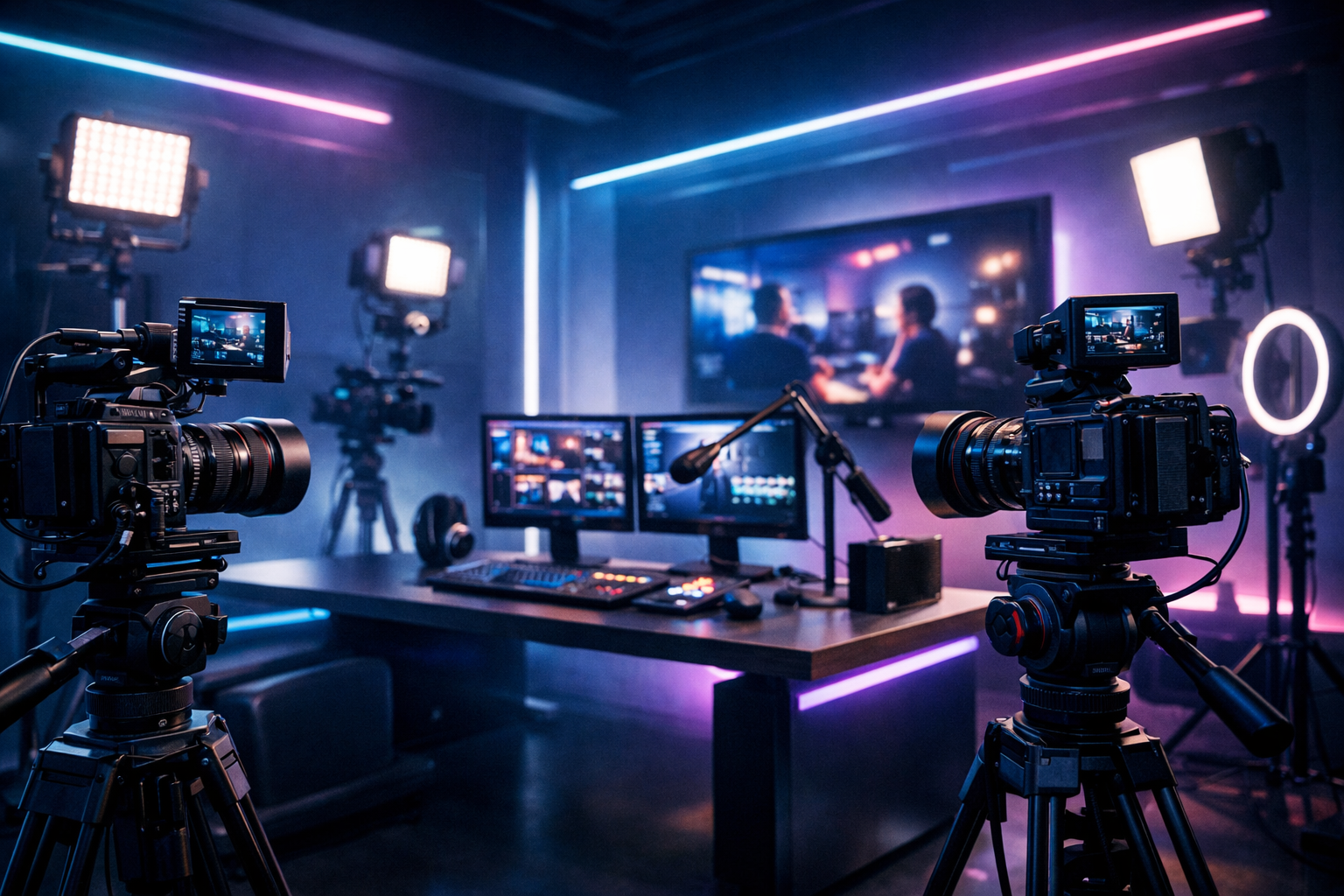
Multi-Camera Setup for Live Streaming (2026): The Complete Step-by-Step Guide
A clean multi-camera live stream isn’t just for big studios anymore. Radio DJs filming in-studio sets, podcasters running video episodes, church broadcasters streaming services, school stations covering events, and live event streamers capturing performances can all build a reliable multi-cam workflow on realistic budgets—if the plan is solid.
This guide walks you through the full setup: planning, choosing cameras and connection types, getting audio right, switching/encoding in OBS or vMix, and going live with Shoutcast hosting that’s designed for broadcasters who want flat-rate, unlimited streaming (not surprise invoices).
Who this is for
- Radio DJs & music streamers
- Podcasters (audio-first or video)
- Church broadcasters
- School radio & media teams
- Live event streamers
Table of Contents
- Plan Your Multi-Camera Workflow (Goals, Platforms, Bitrate)
- Choose Cameras & Connection Types (HDMI, USB, NDI, SDI)
- Audio Setup That Wins (Mics, Mixers, Sync, Monitoring)
- Switching & Encoding (OBS/vMix, Scenes, Graphics, Recording)
- Go Live with Shoutcast Net (Flat-Rate Hosting, AutoDJ, Uptime)
- Troubleshooting & Best Practices (Lag, Desync, Drops, Redundancy)
Goal: a workflow that lets you stream from any device to any device, without fragile cabling, mysterious audio drift, or platform-specific headaches.
Plan Your Multi-Camera Workflow (Goals, Platforms, Bitrate)
Before you buy cameras or run cables, define your stream’s purpose and constraints. A DJ streaming a weekly set needs rock-solid audio and quick scene changes; a church stream needs predictable reliability and a simple volunteer-friendly switch; a school station may need to cover sports with long cable runs. Planning prevents expensive “almost works” setups.
Step 1: Define your deliverables (what are you producing?)
Write down what you must deliver every time you go live. For most broadcasters, this includes a stable program feed (video + clean audio), a backup option, and a recording for repurposing clips.
- Primary output: Live stream in 1080p or 720p, plus a clean audio mix.
- Secondary output: Local recording (for highlights, VOD, podcast upload, or compliance archive).
- Branding: Lower-thirds, station logo bug, “Now Playing”, or sermon notes.
- Staffing: One-person operation vs. a volunteer team.
Step 2: Choose destinations and latency expectations
Your destination determines your encoding settings and switching complexity. Some platforms prioritize compatibility over latency; others support near-real-time interaction. If you need audience call-ins or live chat responses, plan for very low latency 3 sec where feasible, but make sure your network can handle it.
- Social platforms: Great reach; variable latency; changing requirements.
- Your own player/site: More control; consistent brand; reliable embedded listening/watching.
- Multi-destination: Restream to Facebook, Twitch, YouTube if your strategy is distribution-first.
Also decide if you’re delivering audio-only (radio-style) alongside video. Many stations run video for engagement while keeping a dedicated audio stream for listeners on slower connections.
Step 3: Set bitrate targets (realistic, not wishful)
Bitrate is where stream stability is won or lost. The simplest rule: your sustained upload speed should be at least 2× your total outgoing bitrate (more if you’re sending to multiple platforms directly).
| Use case | Resolution / FPS | Video bitrate | Audio bitrate | Notes |
|---|---|---|---|---|
| Radio DJ / podcast (studio) | 1080p / 30 | 4,500–6,000 kbps | 160–320 kbps | Clean lighting beats pushing FPS. |
| Church / school auditorium | 1080p / 30 | 5,000–8,000 kbps | 128–192 kbps | Prioritize stable upload and redundancy. |
| Mobile / field stream | 720p / 30 | 2,500–4,000 kbps | 128–160 kbps | More forgiving on LTE/5G. |
| Audio-only radio stream | N/A | N/A | 128–320 kbps | Consistent audio is king. |
Pro Tip
Plan your workflow around failure points: power, internet, and audio. If you document a “Plan B” now (UPS, LTE backup, spare mic), your multi-camera setup will feel professional even on a tight budget.
Step 4: Map the signal path (camera → switch → encoder → host)
Draw your pipeline on paper. Include every adapter and every conversion. The best multi-camera workflows avoid unnecessary format changes.
- Cameras: HDMI/SDI/USB/NDI outputs
- Capture: capture cards, NDI receivers, SDI ingest
- Switcher: software (OBS/vMix) or hardware ATEM-style
- Audio: mixer/interface into your switcher/encoder
- Encoder output: RTMP/SRT/WebRTC depending on destination
If you want future flexibility, design for any stream protocols to any stream protocols (RTMP, RTSP, WebRTC, SRT, etc)—even if you start with RTMP today.
Choose Cameras & Connection Types (HDMI, USB, NDI, SDI)
Your camera choice matters less than your connection strategy. A great-looking camera can still fail your stream if it introduces unstable drivers, flaky adapters, or distance limitations. Build around the realities of your room: cable length, volunteer skill level, and how often the setup gets moved.
Camera types that make sense in 2026
- Mirrorless/DSLR: Excellent image quality; requires clean HDMI and power management; watch for overheating.
- Camcorders: Reliable for long sessions (church services, concerts); usually great autofocus and zoom control.
- PTZ cameras: Ideal for churches/schools; one operator can control multiple angles; best when mounted permanently.
- Webcams: Best for podcasts/small studios; easiest USB workflow; limited optics.
- Phones/tablets: Surprisingly good as extra angles; great for behind-the-scenes; rely on stable Wi‑Fi or wired adapters.
HDMI vs USB vs NDI vs SDI (what to use and when)
| Connection | Best for | Pros | Cons |
|---|---|---|---|
| HDMI | Studios, short runs | Common, affordable capture | Short cable runs; adapters can be fragile |
| USB | Podcasts, desktops | Plug-and-play; minimal gear | Driver quirks; bandwidth sharing; cable length limits |
| NDI (over network) | Multi-room, flexible routing | One cable (Ethernet); scalable; easy adds | Network design matters; requires solid switches |
| SDI | Churches, auditoriums, events | Long runs; locking connectors; pro reliability | More expensive gear; converters may be needed |
Recommended approach by venue
Pick the simplest system that stays stable under pressure.
- Radio DJ booth / podcast studio: HDMI capture (2–3 cameras) or USB webcams + one HDMI “hero” camera.
- Church: SDI or PTZ over IP; long runs and fixed installation win.
- School station / sports: SDI for field reliability; add NDI for scoreboard PC feeds.
- Live events: SDI for cameras; dedicated switcher; redundant power and recording.
Don’t forget the “boring” camera settings
Mixed camera settings create the look of an amateur production. Standardize as much as possible:
- Match frame rate (29.97 vs 30 vs 60) across all sources.
- Lock exposure and white balance where possible (especially for stage lighting).
- Disable auto power-off and ensure continuous power (dummy batteries or AC adapters).
- Use clean HDMI (no overlays) for mirrorless/DSLR cameras.
Pro Tip
If your cameras are more than ~15–25 feet from the switcher position, default to SDI or NDI. HDMI can work, but long HDMI runs are a common cause of intermittent signal drops and “random” black screens mid-service.
Need gear? Start with reliable capture and cabling first—then upgrade cameras later. If you’re building out a new studio, browse essentials in our shop and prioritize what improves stability (capture, cables, lighting, audio) over “spec sheet” hype.
Audio Setup That Wins (Mics, Mixers, Sync, Monitoring)
Viewers forgive a soft image; they don’t forgive bad audio. For radio DJs, podcasters, and music streamers, audio is the brand. For churches and schools, audio is the message. The goal is one clean master mix that stays consistent while you switch cameras.
Choose the right microphones for the job
- Dynamic mics (podcast/radio): great background noise rejection; ideal for untreated rooms.
- Condenser mics: more detail; best in controlled/treated spaces.
- Lavalier mics (church/speakers): consistent speech level; pair with a reliable wireless system.
- Shotgun mics: useful for events, but don’t replace close mics for speech.
Mixer or audio interface (and why many broadcasters need both)
A mixer gives you routing, EQ, compression, and multiple inputs. An interface gives you clean conversion and stable drivers. Many modern mixers include a USB interface—perfect for compact setups.
- Small studio: USB mixer with 2–4 mic inputs + a dedicated music input.
- Church/school auditorium: FOH console feed to your stream mixer (or a matrix/aux send).
- Music streamers: separate program mix vs monitor mix to avoid feedback loops.
Audio sync: how to avoid the “lip-flap” problem
Different camera paths add different delays (USB webcams, HDMI capture cards, NDI decoding). The fix is simple: add audio delay in your switcher so audio matches the slowest video source.
Practical method: pick your main camera, clap once on camera, and watch the waveform vs the clap frame. Then set an audio delay until it lines up.
# Example starting points (adjust by testing)
# USB webcam path: often 80–200 ms delay
# HDMI capture: often 40–120 ms delay
# NDI decode: often 60–180 ms delay

OBS: Settings → Audio → Sync Offset (ms)
vMix: Audio Mixer → Delay (ms) per input or master
Monitoring: hear what the audience hears
Monitoring prevents silent streams and distorted audio. At minimum, you need a way to monitor the program output (post-mix, post-processing), not just individual mic channels.
- Headphones for the operator (closed-back to reduce bleed).
- Program meter in your switcher (watch peaks, not just average).
- Confidence feed on a phone/laptop to verify the live destination.
Pro Tip
If you stream music (DJ sets, in-studio performances), do a quick “loudness sanity check” before going live: set a limiter on the master bus and aim for consistent levels. Clean, controlled audio is what makes a multi-cam stream feel expensive.
A simple, reliable audio blueprint
For most broadcasters, this is a proven path:
- Mics/instruments → Mixer (EQ + compression + limiter)
- Mixer USB/line out → OBS/vMix as the single audio source
- OBS/vMix → stream + record (same master audio)
Switching & Encoding (OBS/vMix, Scenes, Graphics, Recording)
Once cameras and audio are stable, your switcher/encoder is the “brain” of the production. In 2026, OBS remains the best free option, while vMix is a common upgrade for advanced routing, instant replay, and broadcast-style control.
OBS vs vMix: how to choose
| Feature | OBS | vMix |
|---|---|---|
| Cost | Free | Paid licenses |
| Ease for volunteers | Moderate | Often easier once templated |
| Advanced live production | Via plugins/workarounds | Strong built-in toolset |
| NDI/Network workflows | Good (with setup) | Very good |
| Reliability approach | Great if kept simple | Great for complex shows |
Build scenes like a real show (not a pile of sources)
A multi-camera stream becomes easy to run when you design repeatable scenes and switch between them. Think like a TV director: create a small set of “shots” you can rely on.
- Scene 1: Wide shot (safe default)
- Scene 2: Host close-up
- Scene 3: Guest close-up (or instrument cam)
- Scene 4: Two-shot (split-screen)
- Scene 5: Media/Slides + small camera PIP
- Scene 6: “Starting soon” + countdown
- Scene 7: “Be right back”
Graphics that help (lower-thirds, now playing, donations)
Use graphics to make the stream informative, not cluttered. For radio and music streams, a “Now Playing” lower-third and station branding go a long way. For churches/schools, keep a clean lower-third for speaker names and key messages.
- Lower-thirds: name/title, segment labels
- Persistent logo bug: small, top corner
- Call-to-action: subscribe, donate, visit station site
- Audio-first listeners: include a “Listen-only” link on screen
Encoding settings that stay stable
For most creators, stability improves when you pick conservative settings and avoid constant changes.
- Codec: H.264 for maximum compatibility
- Keyframe interval: 2 seconds (common requirement)
- CBR: preferred for many destinations
- Audio: AAC, 48 kHz
# Example "safe" OBS output settings (starting point)
Video: 1920x1080 @ 30fps
Rate Control: CBR
Bitrate: 6000 kbps
Keyframe Interval: 2
Preset: Quality (adjust if CPU/GPU struggles)
Profile: High
Audio: AAC 160–192 kbps, 48 kHz
Record locally (always) for clips and protection
Local recording gives you highlights, podcast versions, and a backup if a platform fails. Use a quality setting that your storage can handle, and record to a fast SSD when possible.
- Format: MKV (safer if OBS crashes), remux to MP4 after
- Audio tracks: consider separate tracks for mic/music if you edit later
- Storage: dedicate a drive for recordings
Pro Tip
Keep your live show “template” locked. Once it’s stable, clone it for new events rather than rebuilding. Most multi-cam failures happen right before going live because someone “just changed one setting.”
If your goal is to reach everywhere, build one clean program feed and then distribute it—don’t run separate encodes for every platform unless you have a dedicated streaming PC. A single reliable master is how you stream from any device to any device without creating a fragile setup.
Go Live with Shoutcast Net (Flat-Rate Hosting, AutoDJ, Uptime)
A multi-camera setup is only half the battle—your hosting and delivery determines whether listeners/viewers actually get a smooth experience. Shoutcast Net is built for broadcasters who want predictable costs, high reliability, and features that help you stay live even when your studio can’t.
Why broadcasters move to Shoutcast Net in 2026
Many “enterprise” streaming stacks still price like it’s 2010: expensive per-hour/per-viewer billing (often associated with Wowza-style models) that punishes growth. And some legacy Shoutcast setups come with limitations that make modern workflows harder than they should be.
Shoutcast Net focuses on what radio DJs, podcasters, and stations actually need: flat-rate, unlimited streaming that scales without surprise bills, plus tools like AutoDJ for continuity.
- Starting at $4/month for affordable entry-level hosting
- Up to 1,000 listeners so you don’t pay more when your show goes viral
- 99.9% uptime for dependable delivery
- SSL streaming for modern browsers and secure playback
- AutoDJ to keep content playing 24/7 when you’re off-air
- 7 days trial so you can test your full workflow before committing
How multi-cam video fits with Shoutcast-style audio delivery
For many stations and creators, the smartest approach is a two-lane broadcast:
- Lane 1 (Video): Your multi-camera program goes to video platforms (or your site player) for engagement.
- Lane 2 (Audio): A dedicated audio stream delivers reliable listening to fans anywhere—especially on mobile, smart speakers, and low-bandwidth connections.
This hybrid model is how you stream from any device to any device: viewers watch when they can, while listeners stay connected even if they can’t watch.
Where Shoutcast Net beats expensive metered platforms
When you’re running weekly DJ shows, school broadcasts, or church services, costs should be predictable. With per-hour/per-viewer pricing, a bigger audience can mean a bigger bill—exactly the opposite of what you want when you’re trying to grow.
Shoutcast Net’s flat-rate unlimited model is designed to support growth, and it avoids the friction of “turn off the stream so we don’t get billed.” That’s a major advantage versus Wowza’s expensive per-hour/per-viewer billing, and it also improves on legacy Shoutcast limitations by focusing on modern reliability, SSL streaming, and broadcaster-friendly tools.
How to get started fast
If you want to test your multi-camera stream alongside a dedicated audio stream, start here:
- Launch a plan on Shoutcast hosting
- Enable AutoDJ for 24/7 continuity (great for stations and churches)
- If your workflow needs it, explore icecast options as well
- Try it first with a 7 days trial
Pro Tip
Use AutoDJ as your “dead-air insurance.” If your live studio feed drops, your station can keep playing scheduled content while you restore the multi-camera/video side—your audience stays connected instead of hearing silence.
If you’re building a full broadcast stack, it’s also worth planning how you distribute to social platforms. Many creators run their master program feed and then Restream to Facebook, Twitch, YouTube for reach—while Shoutcast Net delivers the reliable audio stream that listeners can count on daily.
Troubleshooting & Best Practices (Lag, Desync, Drops, Redundancy)
Multi-camera streams fail in predictable ways: bandwidth spikes, USB bus overload, mismatched frame rates, audio drift, and power interruptions. The good news is that most problems can be prevented with a few standard practices.
Lag and buffering (your viewers complain the stream “stutters”)
Start with the fundamentals: your upload, encoder load, and destination stability.
- Run a wired connection (Ethernet) from the encoder PC whenever possible.
- Lower bitrate by 10–20% and test again; stability beats max quality.
- Reduce FPS before reducing resolution (1080p30 is often better than 1080p60).
- Check encoder overload: if CPU/GPU is maxed, the stream will hitch.
Audio/video desync (lip sync drifts over time)
Desync is usually caused by mixed frame rates, variable capture delays, or audio being captured through a different clock source than the video.
- Match frame rate across all cameras and the project (29.97 vs 30 mismatches matter).
- Use one audio master (single interface/mixer) instead of multiple USB mics.
- Lock sample rate to 48 kHz end-to-end.
- Apply sync offset to align audio with your slowest camera path.
Camera drops and random black screens
This is commonly cabling, power, or USB bandwidth.
- HDMI: replace cheap cables; avoid long runs; use strain relief.
- USB: spread capture devices across USB controllers; avoid unpowered hubs.
- Power: use AC adapters/dummy batteries; disable sleep settings.
- Heat: mirrorless cameras may overheat—test for your full program length.
Redundancy: what to back up first
You don’t need duplicate everything. Back up what fails most often.
- Internet: LTE/5G hotspot ready (even if it’s lower bitrate).
- Power: UPS for modem/router/switcher/encoder PC.
- Audio: spare mic + spare cable; an emergency “house mix” input.
- Content continuity: AutoDJ so your station stays live if the studio feed drops.
Latency expectations (and how to keep them realistic)
If your show depends on audience interaction, optimize for low latency. But remember: lower latency usually means less buffering tolerance. For interactive events, you may target very low latency 3 sec on compatible platforms and networks. For long-form broadcasts (church, school concerts), a little extra buffer may produce a smoother experience.
A pre-flight checklist you can actually use
Multi-Cam Pre-Flight (10 minutes)
1) Reboot encoder PC and network gear (if practical)
2) Verify upload speed (target 2x outgoing bitrate)
3) Confirm camera power (AC/dummy batteries)
4) Confirm all cameras show stable signal for 3+ minutes
5) Confirm audio meters + no clipping on master
6) Check audio sync (quick clap test)
7) Start local recording
8) Go live to a private/unlisted test (30–60 seconds)
9) Verify playback on phone (video + audio)
10) Switch to public + start show
Pro Tip
Treat your stream like a broadcast: build a “known good” profile and never change it minutes before airtime. Then scale safely—add one new camera, one new graphic, or one new routing change per test session, not all at once.
When your production is stable, your audience grows—and that’s where predictable hosting matters. Instead of worrying about per-hour/per-viewer costs (the common pain with Wowza’s expensive per-hour/per-viewer billing), build on a platform designed for broadcasters: Shoutcast Net’s flat-rate unlimited approach, 99.9% uptime, SSL streaming, and listener-friendly delivery.
Ready to stream with predictable costs?
Launch your station with up to 1,000 listeners, SSL streaming, and plans starting at $4/month.
Need 24/7 continuity?
Keep content playing when you’re off-air or if your live feed drops using AutoDJ.