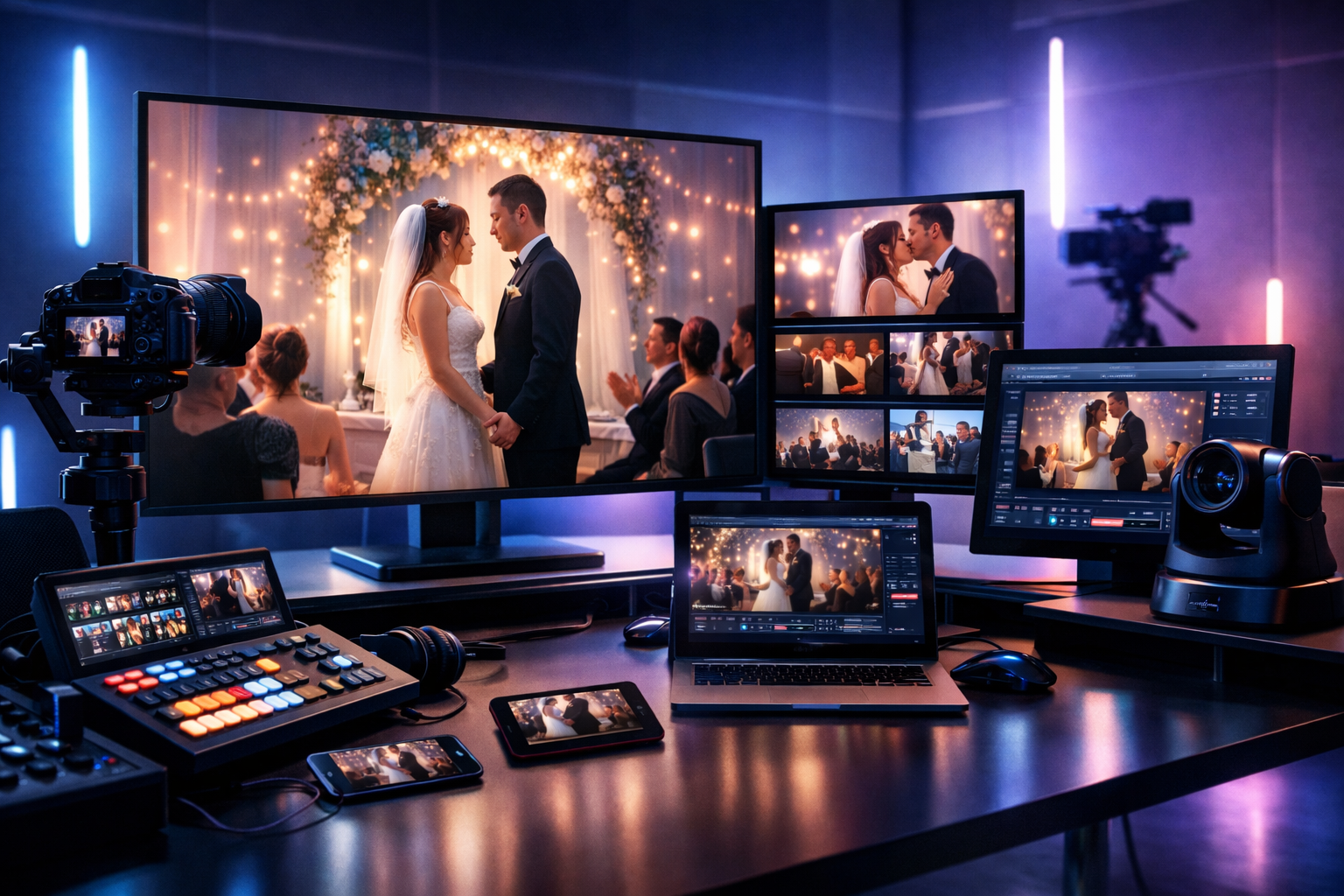
Live Stream Weddings Like a Pro: Step-by-Step Wedding Live Streaming Setup (2026)
Wedding live streaming in 2026 isn’t just “hit Go Live and hope.” If you’re a radio DJ, podcaster, church broadcaster, school station, or live event streamer, you already think like a broadcaster—so treat the ceremony and reception like a proper show: clean audio, reliable internet, backups, and a streaming setup that won’t explode your budget with per-viewer fees.
This guide walks you through a professional workflow that can stream from any device to any device, keep audio intelligible, and deliver a stable feed for remote guests. You’ll also see how to combine modern video delivery (RTMP/HLS) with a dedicated audio stream (Shoutcast/Icecast) so listeners on low bandwidth can still tune in.
Quick navigation
- 1) Plan the wedding stream (run of show + requirements)
- 2) Choose a flat-rate streaming platform (avoid per-viewer fees)
- 3) Pick gear: audio, cameras, and reliable internet
- 4) Configure your encoder (RTMP/HLS + Shoutcast/Icecast audio)
- 5) Set bitrates, mount points, and AutoDJ failover
- 6) Test, go live, monitor, and run backups
If you want a streaming host built for broadcasters (not surprise bills), start with Shoutcast Net: $4/month starting price, 100–1,000 listeners (by plan), 99.9% uptime, SSL streaming, and AutoDJ. You can also try it with a 7 days trial.
1) Plan the wedding stream (run of show + requirements)
Before you buy gear or build scenes, lock the plan. A wedding is a live show with zero tolerance for missed moments. Your job is to define what gets streamed, how it sounds, where it’s hosted, and how you’ll recover if something fails.
Build a simple run of show
Get the wedding timeline and turn it into broadcast cues. Even a one-page run sheet prevents chaos when the processional starts early or the officiant changes mic placement.
- Pre-show: countdown slate, background music, “stream starts at…” text
- Ceremony: processional, vows, rings, pronouncement, recessional
- Reception (optional): entrances, speeches, first dance, cake cutting
- Post-show: thank-you slate, recording note, contact info
Confirm requirements with the couple and venue
Treat requirements like a technical rider. Ask for permissions, Wi‑Fi access, power locations, and camera restrictions (many venues limit where you can stand during the ceremony).
- Audience: approximate remote guests and their devices (phones, tablets, smart TVs)
- Privacy: unlisted/private link, password, or “only those with URL”
- Recording: do they want a full recording, separate audio-only, or both?
- Audio policy: can you patch into house sound, or must you stay independent?
Design for accessibility: video + audio-only
A smart 2026 workflow provides both: a video stream for most viewers and an audio-only stream for anyone on weak connections. This is also where broadcast-grade hosting matters—your audio stream should stay online even if your video platform has issues.
Shoutcast Net makes it easy to publish a dedicated audio stream that remote guests can open in a browser or player—helpful for grandparents on limited bandwidth.
Pro Tip
Write your “failure plan” into the run sheet: what happens if the venue Wi‑Fi fails, if the main camera overheats, or if your encoder crashes. A wedding isn’t the time to improvise—build the backup steps now.
2) Choose a flat-rate streaming platform (avoid per-viewer fees)
Your hosting choice impacts everything: cost, reliability, player compatibility, and how easy it is for guests to click and watch. The biggest trap for weddings is per-viewer or per-hour billing—a single viral clip or large family can turn into an unexpected bill.
Why flat-rate matters for weddings
Weddings have unpredictable viewership spikes. People jump in for vows, drop off, then return for speeches. Per-hour/per-viewer pricing models punish that behavior.
This is where Shoutcast Net stands out compared to platforms like Wowza that can get expensive with per-hour/per-viewer billing. Shoutcast Net focuses on a flat-rate unlimited model built for broadcasters with up to 1,000 listeners and predictable monthly pricing.
Video platform + audio streaming host (best-of-both)
A common pro setup is:
- Video: RTMP out to a video destination (or your own HLS workflow)
- Audio: Shoutcast/Icecast audio stream as a parallel, lightweight option
- Failover: AutoDJ as the “always on” safety net
This approach supports any stream protocols to any stream protocols (RTMP, RTSP, WebRTC, SRT, etc) in your production chain while keeping the final delivery reliable and easy for guests.
Shoutcast Net vs. legacy limitations
Older, “legacy” Shoutcast setups often meant limited SSL options, fewer modern integrations, and more hands-on maintenance. Shoutcast Net modernizes the workflow with SSL streaming, fast provisioning, and broadcaster-friendly controls—without the surprise pricing you see elsewhere.
| What matters for weddings | Shoutcast Net | Wowza-style billing |
|---|---|---|
| Pricing predictability | Flat-rate unlimited model (no per-viewer surprises) | Often per-hour/per-viewer; costs can spike |
| Starting price | $4/month starting price | Typically higher at scale |
| Reliability | 99.9% uptime | Varies by plan and usage |
| Security | SSL streaming | May require additional setup/cost |
| Failover | AutoDJ available | Often DIY or extra services |
To get started, visit Shoutcast hosting (or Icecast hosting) and grab a 7 days trial before your next event.
Pro Tip
Don’t make guests create accounts. Use a simple web player page (SSL) plus a backup audio-only link. Your goal is one-click viewing—especially for older family members.
3) Pick gear: audio, cameras, and reliable internet
For weddings, audio is the product. Viewers will forgive a slightly imperfect shot, but they won’t stay if vows are muffled or distorted. Build your kit around clean speech capture, stable video, and internet redundancy.
Audio: minimum viable pro setup
Choose one of these proven approaches (ranked best-to-fastest):
- Wireless lav on officiant + lav on groom into a small field mixer (best coverage for vows)
- Feed from venue mixer (if available) + your own ambient mic as backup
- Shotgun mic on camera (only as a last resort)
If you’re a DJ or radio streamer, you already have audio instincts—apply them: set conservative levels, use a light compressor if needed, and always monitor with closed-back headphones.
Video: keep it stable and simple
A wedding stream doesn’t need cinema complexity. A reliable 1080p shot with stable exposure beats a multi-cam setup that drops frames.
- One locked wide camera (tripod) covering the altar
- Optional second camera for close-ups (static or operated)
- Capture device (if using HDMI cameras into a laptop encoder)
Internet: aim for redundancy (not hope)
Use this priority order:
- Wired ethernet from venue (ideal)
- Dedicated venue Wi‑Fi with confirmed upload speeds
- Bonded cellular or at least a 5G hotspot with a second SIM as backup
Target upload headroom: at least 2x your total outbound bitrate. If you’re sending 6 Mbps video plus 160 kbps audio, don’t accept a 6–7 Mbps upload line—aim for 12–15 Mbps sustained.
Latency expectations (and what to promise)
Couples often ask for “real-time.” In practice, stable wedding streams are usually delayed. If your workflow supports it, you can target very low latency 3 sec for interactive moments, but only if your network and platform can sustain it without buffering.
Pro Tip
Pack duplicates of the cheap failure points: extra XLR cables, 3.5mm adapters, batteries, SD cards, and a second lightweight mic. Weddings fail on small missing parts more than on “big gear.”
4) Configure your encoder (RTMP/HLS + Shoutcast/Icecast audio)
Your encoder is the bridge between cameras/mics and your destinations. In 2026, the most common approach is: encode video to RTMP (or SRT) and let the platform deliver HLS to viewers. At the same time, send a dedicated audio stream to Shoutcast or Icecast for a “radio-style” fallback.
Choose your encoder workflow
Pick the approach that matches your kit and experience:
- Software encoder: OBS Studio or vMix on a laptop (flexible, affordable)
- Hardware encoder: dedicated encoder box (stable, less OS risk)
- Mobile encoder: phone encoder app for ultra-light setups
The goal is a workflow that can stream from any device to any device, including a phone as the emergency camera if your main rig fails.
Video output basics (RTMP in, HLS out)
Most wedding platforms still accept RTMP ingest, then distribute via HLS for maximum compatibility across browsers and smart TVs. Configure your encoder with:
- Resolution: 1920x1080 (or 1280x720 if internet is limited)
- FPS: 30 fps
- Keyframe interval: 2 seconds (common for HLS)
- Rate control: CBR or capped VBR for stability
Audio stream output (Shoutcast/Icecast)
Create a second audio-only encode (AAC or MP3) feeding Shoutcast Net. This gives you:
- Bandwidth-friendly option for guests
- Cleaner speech when video platforms compress aggressively
- Independent uptime if your video destination has issues
Example: OBS “audio-only” stream concept (pseudo-config)
OBS doesn’t natively send two completely different outputs without plugins, but the concept is to run a second lightweight encoder (or a separate instance/tool) for audio-only. Here’s a simple “what to set” reference for an audio encoder feeding Shoutcast/Icecast:
Codec: AAC (or MP3)
Sample rate: 44.1 kHz
Channels: Stereo (or Mono for speech clarity)
Bitrate: 96 kbps (speech) / 128 kbps (music-heavy)
Server type: Shoutcast or Icecast
Mount/Stream path: /wedding (Icecast) or stream ID (Shoutcast)
TLS/SSL: Enabled (recommended)
Optional: restreaming destinations
If the couple wants public viewing, you can Restream to Facebook, Twitch, YouTube from your encoder or via a restream service. Just keep a private “family link” too, because social platforms can mute audio due to music detection during receptions.
If you do restream, keep your master stream stable and treat social platforms as additional outputs—not the only place the wedding exists.
Pro Tip
If you’re unsure about video stability at the venue, prioritize the audio-only Shoutcast/Icecast feed as your “always works” option. Guests will forgive lower video quality; they won’t forgive missing vows.
5) Set bitrates, mount points, and AutoDJ failover
This is where you make your wedding stream resilient. You’ll publish multiple quality options (or at least clear separation between video and audio), and you’ll configure AutoDJ so something plays even if you disconnect.
Choose practical bitrates (wedding-tested)
Use bitrates that survive real-world Wi‑Fi and cellular conditions:
- Video 1080p: 4.5–6 Mbps video + 160 kbps audio
- Video 720p: 2.5–3.5 Mbps video + 128–160 kbps audio
- Audio-only speech: 64–96 kbps AAC/MP3 (mono is fine)
- Audio-only music: 128 kbps (AAC/MP3)
If you’re hosting the audio stream with Shoutcast Net, remember you’re not punished for success—up to 1,000 listeners means the whole guest list can tune in without worrying about a per-viewer bill.
Mount points and stream organization
Think like a station engineer: name things clearly so you can hand links to guests without confusion.
- /ceremony (audio-only vows)
- /reception (audio-only speeches/music)
- /backup (always-on fallback content)
On Icecast, you’ll literally use mount points like /ceremony. On Shoutcast, you may use stream IDs depending on your plan/control panel. Either way, keep naming consistent in your documentation.
AutoDJ failover: keep the stream alive
AutoDJ is your silent hero. If your encoder drops (battery, cable, hotspot crash), AutoDJ can automatically play preloaded audio so the stream doesn’t go offline.
For weddings, load a small, appropriate playlist:
- Instrumental background music (royalty-cleared if public)
- A “We’ll be right back” spoken bumper
- A short loop explaining: “If you can’t see video, use the audio-only link.”
If you haven’t used it before, see AutoDJ and set it up during your rehearsal week (not on wedding day).
SSL streaming and guest trust
Guests are increasingly cautious with links. SSL streaming reduces browser warnings and improves compatibility on modern devices. Shoutcast Net supports SSL streaming so your wedding audio link looks professional and works smoothly.
Pro Tip
Use AutoDJ as a “heartbeat.” Even if you plan to stream only 45 minutes, keep the server live for 2–3 hours with AutoDJ before and after. It gives late guests something to hear and buys you time if the schedule shifts.
6) Test, go live, monitor, and run backups
The difference between a casual stream and a professional wedding broadcast is testing, monitoring, and redundancy. Treat this like you would a remote radio live hit: verify every link in the chain, then watch it like a hawk.
Run a full test at least once (same time of day)
Network conditions change. If possible, test at the same time/day as the wedding to mimic venue traffic. Confirm:
- Video ingest stability (no dropped frames for 15–30 minutes)
- Audio clarity (vows-level speech, not DJ booth loudness)
- Guest playback on iPhone/Android + a laptop
- Audio-only link works and sounds good
- AutoDJ actually takes over when you stop the encoder
Create a “go live” checklist
Print it. Don’t rely on memory.
- Batteries full, spares packed
- All devices in airplane mode (except the one providing internet)
- White balance/exposure locked (avoid pulsing during vows)
- Audio levels set with headroom (no clipping on laughter/applause)
- Backup hotspot powered and ready
- Guest links copied into a message/email for quick resend
Monitor like a broadcaster (not like a camera op)
You need feedback from the real world, not just your encoder preview:
- Local monitoring: headphones on your main mix
- Remote monitoring: a second phone on cellular playing the stream
- Platform stats: bitrate, dropped frames, disconnects
If you’re pushing for very low latency 3 sec, monitoring is even more important—low latency settings can be less forgiving when internet fluctuates.
Backups you should actually use
Backups only matter if you can switch fast:
- Internet: primary + hotspot (ideally different carriers)
- Audio: second mic source (ambient mic) or a recorder you can route
- Power: battery bank/UPS for encoder + hotspot
- Content: AutoDJ fallback so guests never hit “stream offline”
Deliver the links and support guests
Send two links:
- Primary video link (simple instructions: “Tap to watch”)
- Audio-only link (for low bandwidth or “just listen”)
If you host the audio with Shoutcast Net, you’re giving guests a reliable option backed by 99.9% uptime and SSL streaming, without paying Wowza-style per-hour/per-viewer costs.
Pro Tip
Assign one person (not you) to handle guest troubleshooting texts. Your job is to keep the stream clean. A single helper can resend the audio-only link and solve 90% of “it won’t play” issues.
Recommended next step: set up your wedding-ready audio stream
If you want a broadcaster-grade backbone for wedding audio (plus AutoDJ failover), Shoutcast Net is built for it: $4/month starting price, 100–1,000 listeners (by plan), SSL streaming, and 99.9% uptime. Start with a 7 days trial, then choose Shoutcast hosting or Icecast hosting depending on your workflow.
Need cables, adapters, or streaming add-ons? Browse the shop and build a kit that’s ready for the next ceremony.