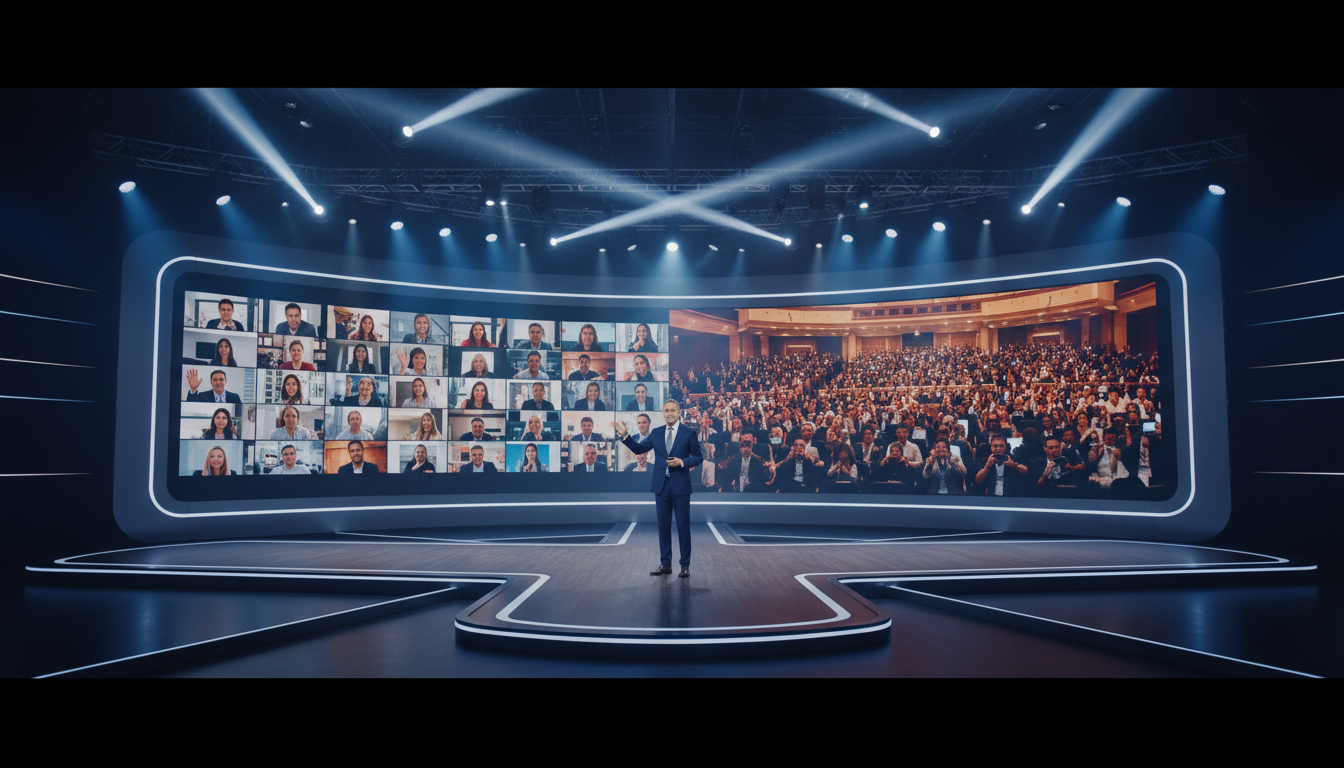
What is Hybrid Event Streaming? (And Why It Matters)
The world of live events has changed forever. No longer are we confined to just a physical room or a purely virtual screen. Welcome to the era of the hybrid event—a powerful fusion of in-person energy and global digital reach. But what exactly does that mean for you, the broadcaster?
A hybrid event is an event, conference, performance, or service that takes place in a physical venue with a live, in-person audience, while also being streamed concurrently to a remote, online audience. Think of it as having two audiences simultaneously: one you can see and one you can engage with through the web.
This isn't just a temporary trend; it's the new standard for 2026 and beyond. Why? Because the benefits are too significant to ignore:
-
Exponentially Increased Reach
Your physical venue has a capacity limit. The internet does not. A hybrid model allows you to break down geographical barriers, attracting attendees from across the city, country, or even the globe who couldn't otherwise attend.
-
Enhanced Accessibility & Inclusivity
People may be unable to attend in person due to budget constraints, travel limitations, health concerns, or disabilities. Hybrid events ensure that your content is accessible to everyone, fostering a more inclusive community around your brand or organization.
-
New Monetization Opportunities
You can create tiered ticketing systems: a premium price for the in-person experience and a more accessible price for virtual access. This opens up new revenue streams that weren't possible with purely physical events.
-
Valuable, Evergreen Content
Your live stream is instantly a high-quality recording. This content can be repurposed for on-demand viewing, marketing materials, podcast episodes, or social media clips, extending the life and value of your event long after it's over.
For a radio DJ, it’s broadcasting your live set from a club to your global fanbase. For a church, it’s allowing members of the congregation who are traveling or unwell to participate in the service. For a school radio station, it’s streaming a live campus event to parents and alumni. The applications are limitless, and the key is a robust, reliable streaming setup.
Pro Tip: Think "One Event, Two Experiences"
Don't treat your online audience as an afterthought. The goal of a successful hybrid event is to create a cohesive experience where both audiences feel valued and engaged. Your planning, from technology to content, should always consider how an element will play for both the people in the room and the people on the screen.
Essential Gear: Your Hybrid Streaming Checklist
Creating a professional-grade hybrid stream doesn't require a Hollywood budget, but it does require the right tools for the job. Your setup can be scaled up or down, but the core components remain the same. Let's break down the essential gear into three categories: Audio, Video, and Connectivity.
1. Audio Gear: The Unsung Hero
Poor audio is the fastest way to lose your online audience. If they can't hear you clearly, they'll leave. Prioritize clean, crisp audio above all else.
- Microphones: You'll need at least two types.
- Presenter Mics: A lavalier (lapel) mic, headset mic, or a high-quality podium microphone (like a Shure SM58) for the main speaker(s). This ensures their voice is captured directly, without room echo.
- Audience/Ambiance Mics: One or two condenser microphones placed strategically to capture the room's atmosphere—applause, laughter, questions. This makes the online audience feel like they're part of the live experience.
- Audio Mixer: This is the heart of your audio setup. A mixer (like a Behringer Xenyx or a Yamaha MG series) allows you to take all your audio sources (presenter mics, ambiance mics, computer audio, music) and blend them into one clean stereo mix that you send to your stream.
- Audio Interface / USB Mixer: This device converts the analog signal from your mixer into a digital signal your computer can understand. Many modern mixers have a USB interface built-in, simplifying this step.
2. Video Gear: Capturing the Action
While a single webcam can work in a pinch, a multi-camera setup elevates your production value significantly.
- Cameras: Aim for 1-3 cameras for a dynamic stream.
- Main Camera: A medium shot of the main speaker or stage. A mirrorless camera (like a Sony a6400) or a prosumer camcorder offers excellent quality.
- Wide Camera: A shot that captures the entire stage and part of the audience.
- Audience/Detail Camera: A camera focused on the audience for reaction shots or a tight shot on a product or presentation detail.
- Capture Card: This is a non-negotiable, critical piece of hardware. A capture card (from brands like Elgato, Magewell, or Blackmagic Design) takes the HDMI or SDI video output from your cameras and mixer and converts it into a source your computer and streaming software can use.
- Tripods & Lighting: Sturdy tripods for each camera are essential to avoid shaky footage. Basic three-point lighting (key, fill, back light) on your main subject will make your video look dramatically more professional than relying on ambient room light.
3. Connectivity & Computing
Your stream is only as reliable as your internet connection.
- Dedicated Internet Connection: Do not rely on shared venue Wi-Fi. It's unpredictable and often congested. Insist on a dedicated, wired Ethernet connection.
- Upload Speed: Your upload speed is paramount. For a stable 1080p stream, you need a sustained upload speed of at least 10-15 Mbps. Run a speed test before the event.
- Streaming PC/Laptop: You'll need a reasonably powerful computer with a modern processor (Intel i7/AMD Ryzen 7 or better) and a dedicated graphics card (NVIDIA or AMD) to handle the encoding process without dropping frames.
Pro Tip: Start Simple, Then Scale
Feeling overwhelmed? Don't be. You can start with a single good camera, a USB microphone, and a reliable internet connection. Use this guide as a roadmap. Master a simple setup first, then add components like a second camera or an audio mixer as your events and budget grow. The key is to start creating!
Choosing Your Streaming Software (Encoder)
Your streaming software, also known as an encoder, is the command center for your live production. It takes all your video and audio sources, mixes them together, and "encodes" them into a format that can be sent to your streaming server. It's where you'll switch between cameras, add graphics, play videos, and manage your entire visual presentation.
Here are three of the most popular and powerful options available:
OBS Studio
The undisputed king of free streaming software. OBS is open-source, incredibly powerful, and supported by a massive community. It allows for unlimited scenes, complex audio routing, and supports a vast library of plugins to extend its functionality.
Best for: Everyone, from beginners to seasoned professionals. The learning curve is moderate, but the power and cost (free!) are unbeatable.
vMix
A professional-grade, Windows-only software solution. vMix offers advanced features like instant replay, video calling (vMix Call), and NDI support out of the box. It's known for its high performance and robust feature set, but comes with a subscription or one-time purchase cost.
Best for: Power users and professional production companies who need advanced features and dedicated support.
Streamlabs Desktop
Built on top of OBS, Streamlabs offers a more user-friendly interface with integrated features like alert boxes, themes, and donation tracking, primarily geared towards gamers but very capable for other events. It simplifies many of the setup processes found in OBS.
Best for: Beginners or streamers who want a simpler, more guided setup experience with built-in visual flair.
For most users getting started with hybrid events, OBS Studio is the perfect choice. It provides all the necessary tools to create a polished, multi-camera production without any software cost.
Pro Tip: Set Up Your Scenes in Advance
In your encoder, a "scene" is a layout of sources. Before your event, create several scenes you can switch between. For example: a "Starting Soon" scene with a countdown timer and music, a "Main Speaker" scene (tight camera shot + presentation slides), a "Wide Shot" scene showing the stage, and an "Ending" scene with contact info. This preparation allows you to run your stream like a professional TV broadcast.
Selecting the Right Streaming Server: Shoutcast Net vs. Competitors
You've got your gear and your encoder. Now, you need a destination for your stream. This is the role of a streaming server or Content Delivery Network (CDN). Your encoder sends one high-quality stream to the server, and the server duplicates and distributes it to every single one of your viewers around the world, ensuring a smooth, buffer-free experience for everyone.
This is one of the most critical decisions you'll make, as it directly impacts your budget, scalability, and technical capabilities. Let's look at the landscape.
The Problem with Traditional & "Big Tech" Options
Many broadcasters run into two major roadblocks: outdated technology or punitive pricing models.
- Legacy Shoutcast/Icecast Servers: While foundational for internet radio, traditional self-hosted Shoutcast and Icecast servers are often limited to audio-only streams (MP3/AAC) and lack support for modern video protocols like RTMP or SRT. Managing them requires significant technical expertise, and they don't offer the global distribution network needed for a large-scale video event.
- The Wowza Trap: Platforms like Wowza offer powerful technology, but their pricing model can be devastating for growing events. They often use a complex, metered billing system based on hours of streaming, bandwidth used, and even the number of viewers. The more successful your event is, the more you pay. A popular stream can result in a shocking, unpredictable bill at the end of the month. This model punishes growth and makes budgeting impossible.
The Shoutcast Net Advantage: Power, Predictability, and Price
This is where Shoutcast Net changes the game. We built our platform to provide the professional features you need without the punitive pricing. We believe your success should be celebrated, not penalized.
Our model is simple: flat-rate monthly pricing with up to 1,000 listeners and unmetered bandwidth. Starting at just $4/month, you know exactly what you're paying, whether you have 10 viewers or 1,000. This predictability is crucial for any broadcaster, from a school radio station to a large-scale conference.
| Feature | Shoutcast Net | Wowza | Self-Hosted Legacy Shoutcast |
|---|---|---|---|
| Pricing Model | Flat-Rate, Predictable Monthly Fee | Pay-per-viewer/per-hour, metered | Server hardware & bandwidth costs |
| Listeners/Bandwidth | Unlimited & Unmetered | Metered & Capped by Plan | Limited by your server's capacity |
| Protocol Support | Any stream protocols to any stream protocols (RTMP, RTSP, WebRTC, SRT, etc) | Excellent, but you pay for it | Primarily audio (MP3, AAC) |
| Latency | Very low latency 3 sec options available | Low latency options (at a premium) | Variable, depends on setup |
| Key Features | AutoDJ, Restream to Facebook, Twitch, YouTube, SSL, Analytics | Transcoding, Analytics | Basic streaming, requires manual setup |
| Ease of Use | Simple web-based control panel | Complex API-driven platform | Requires command-line expertise |
| Free Trial | Yes, full-featured 7 days trial | Yes, with limitations | N/A |
With Shoutcast Net, you get the best of all worlds. Our platform is designed to let you stream from any device to any device, handling all the complex transcoding and distribution behind the scenes. Whether you're sending an RTMP stream from OBS or an SRT stream for higher quality, our servers can ingest it and deliver it flawlessly to viewers on web browsers, mobile devices, and smart TVs. Plus, with features like our powerful AutoDJ for pre-show music and the ability to Restream to Facebook, Twitch, YouTube simultaneously, you can maximize your reach with a single click.
Pro Tip: Focus on Total Cost and Value
When choosing a provider, don't just look at the headline price. Consider the total cost of a successful event. With metered providers, a 4-hour event with 1,000 online viewers could cost hundreds of dollars. With Shoutcast Net, it's included in your low monthly fee. That's the power of a predictable, flat-rate model designed for creators. Why not test it yourself with our no-obligation 7 days trial?
Step-by-Step: Configuring Your Hybrid Stream with Shoutcast Net
Let's get down to the practical steps. Setting up your stream is surprisingly straightforward. This guide will use OBS Studio as the example encoder, but the principles are identical for vMix, Streamlabs, or any other software that supports RTMP.
Step 1: Get Your Shoutcast Net Stream Credentials
First, you need a destination for your stream. If you haven't already, sign up for a Shoutcast Net plan. You can start with our full-featured 7 days trial to get everything set up and tested without any commitment.
Once you've logged into your Shoutcast Net control panel:
- Navigate to your Streaming Service dashboard.
- Look for the "Stream Information" or "Encoder Settings" section.
- You will find two crucial pieces of information: the Server URL (sometimes called RTMP URL) and the Stream Key (or Stream Name).
The Server URL is the public address of our ingest server. The Stream Key is a unique, private password that directs the stream to your specific account. Keep your Stream Key private!
### Example Shoutcast Net Credentials ###

Server URL: rtmp://live.shoutcastnet.com/live
Stream Key: 1a2b3c4d5e_your_unique_key
Step 2: Configure Your Encoder (OBS Studio)
Now, open OBS Studio on your streaming computer and connect it to your Shoutcast Net account.
- Go to File > Settings.
- Click on the "Stream" tab on the left.
- For "Service," select "Custom..."
- In the "Server" field, paste the Server URL from your Shoutcast Net panel.
- In the "Stream Key" field, paste your unique Stream Key.
- Click "Apply" and then "OK".

Step 3: Set Up Your Audio & Video Sources
In the main OBS window, you'll see a box labeled "Sources." This is where you add all your gear.
- Click the "+" button under "Sources."
- To add your camera (connected via a capture card), select "Video Capture Device."
- To add your audio mix (from your USB mixer/interface), select "Audio Input Capture."
- To add presentation slides, you can use "Window Capture" (for PowerPoint) or "Image Slide Show."
Arrange these sources on the canvas to create your scenes. You can resize them, crop them, and layer them to create a professional look.
Step 4: Start Streaming!
Once your scenes are ready and you've tested your audio levels, you're ready to go live.
- In the main OBS window, click the "Start Streaming" button.
- Go back to your Shoutcast Net control panel. You should see your stream status change to "Online" and a video preview will appear. You'll also see real-time statistics like viewer count and bandwidth.
- You are now live! Share your player link or embed the player on your website for your audience to watch.
Pro Tip: Always Do a Test Stream
Never go live for the first time on the day of the event. At least a day before, do a complete end-to-end test. Go live for 15-20 minutes, have a friend or colleague watch the stream from a different location, and check for audio sync, video quality, and overall stability. This simple step will save you from major headaches during the actual event.
Engaging Both Audiences: Tips for a Seamless Experience
The technical setup is only half the battle. A truly successful hybrid event makes both the in-person and online audiences feel like they are part of one unified experience. It requires a conscious effort to bridge the gap between the physical and digital worlds.
For Your Online Audience
Your remote viewers need to feel seen and heard, not just like they're passively watching a video.
- Designate an Online Host/Moderator: Have a team member whose sole job is to engage with the online chat. They should welcome people, answer technical questions, and relay important questions from the online audience to the in-person host.
- Integrate Online Questions: Don't just take questions from the room. Dedicate specific Q&A segments where the in-person host explicitly asks, "Let's take a question from our online audience." This simple act is incredibly powerful.
- Use Interactive Elements: Run polls, quizzes, or word clouds that both audiences can participate in using their phones. Display the results on the main screen for everyone to see.
- Provide Exclusive Digital Content: Use on-screen graphics or QR codes to link online viewers to exclusive resources, downloadable slides, or a behind-the-scenes look.
For Your In-Person Audience
Your physical attendees should be aware of and feel connected to the larger online community participating with them.
- Acknowledge the Online Audience: The host should regularly welcome and speak directly to the online viewers. Phrases like, "A big hello to the 500 people joining us online from around the world!" make the event feel bigger and more connected.
- Display a "Social Wall": Use a large screen in the venue to display a curated feed of comments, questions, and photos from the online audience (using a specific event hashtag). This makes the digital conversation visible and part of the physical environment.
- Explain the Technology: Briefly explain the camera and microphone setup. This helps the in-person audience understand why the speaker might be looking at a camera occasionally and makes them feel like part of a modern, tech-forward event.
Ultimately, the goal is to create a shared experience. When an online viewer's question is answered on stage, or an in-person attendee sees a great comment from someone online, the barrier between the two audiences dissolves. This is made possible by a reliable streaming backbone that ensures the experience is smooth for everyone, everywhere. The ability to stream from any device to any device, a core principle of the Shoutcast Net platform, means your audience can connect seamlessly, whether they're on a laptop at home or a phone on the bus.
Pro Tip: Direct Your Energy to the Camera
For presenters, it's natural to focus on the live audience. However, it's crucial to train yourself to periodically make eye contact directly with the main camera. When you look at the camera, you're looking every single online viewer in the eye. This creates a powerful sense of connection and engagement that can't be overstated. Treat the camera lens as the most important person in the room.
Ready to Launch Your Hybrid Event?
The future of events is hybrid, and with this guide and the right tools, you're equipped for success. Stop worrying about surprise bills and technical limitations. Focus on creating an amazing experience for your audience, both in-person and online.
Start Your Free 7 Days Trial TodayNo credit card required. Full access to all features.