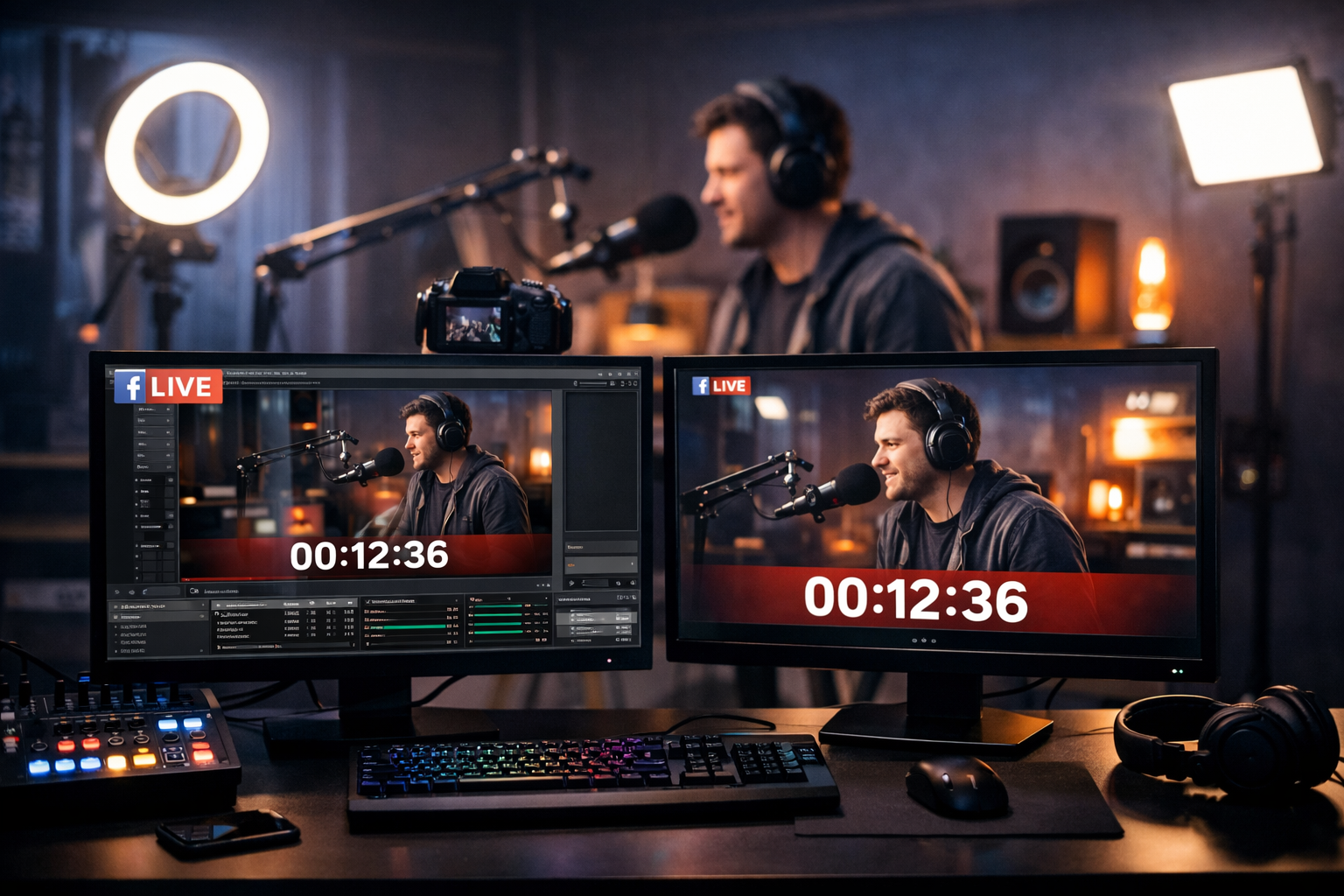
How to Stream on Facebook Live with OBS: Complete 2026 Step-by-Step Guide
Facebook Live remains one of the most powerful platforms for radio DJs, music streamers, podcasters, churches, school radio stations, and live event broadcasters to reach new audiences instantly. But if you want professional overlays, clean audio routing, multiple cameras, and branded visuals, streaming directly from your phone isn’t enough.
That’s where OBS Studio (Open Broadcaster Software) comes in. It’s free, powerful, and trusted by professionals worldwide.
In this complete 2026 guide, you’ll learn exactly how to stream on Facebook Live with OBS — from getting your stream key to going live confidently with studio-quality audio and video.
Why Use OBS for Facebook Live Streaming?
If you’re serious about your broadcast, OBS gives you far more control than streaming directly from a browser or mobile device.
Professional-Grade Production
OBS allows you to create multi-scene productions with overlays, lower thirds, animated transitions, countdown timers, sponsor graphics, and more. This is especially useful for:
- Online radio stations simulcasting to Facebook
- Church services with scripture overlays
- Podcasts with guest name graphics
- Live DJs adding track visuals
Advanced Audio Control
For radio broadcasters and DJs, audio quality is everything. OBS allows you to:
- Control multiple microphones
- Add compression and noise suppression
- Balance music and voice levels
- Route audio from mixers or virtual cables
Brand Consistency
Using OBS ensures your Facebook Live stream matches your branding across platforms — whether you’re also broadcasting via Shoutcast hosting or using AutoDJ for 24/7 radio streaming.
Pro Tip
Many successful stations stream audio 24/7 via Shoutcast Net (starting at just $4/month with a 7-day free trial) and use Facebook Live only for special shows, DJ sets, or events. This hybrid strategy grows both social reach and loyal listeners.
What You Need Before You Start
Before configuring OBS, make sure you have the following ready.
1. A Facebook Account or Page
You can stream to:
- Your personal profile
- A Facebook Page
- A Facebook Group
- A Facebook Event
2. OBS Studio (Latest Version)
Download OBS Studio from the official website and install it on Windows, macOS, or Linux.
3. Stable Internet Connection
For reliable Facebook Live streaming:
- Minimum upload speed: 5 Mbps
- Recommended: 10 Mbps or higher
- Use wired Ethernet instead of Wi-Fi if possible
4. Audio & Video Equipment
- USB or XLR microphone
- Audio mixer (for DJs and radio stations)
- Webcam or DSLR camera
- Headphones for monitoring
Pro Tip
If you’re already broadcasting audio through Icecast or Shoutcast with 99.9% uptime and up to 1,000 listeners, you can route that same clean audio feed into OBS for a consistent sound across platforms.
Step 1: Get Your Facebook Live Stream Key
Your stream key connects OBS to Facebook. Think of it as a secure password that tells Facebook where to receive your broadcast.
How to Find Your Stream Key
- Log into Facebook.
- Click Create Post → Live Video.
- Choose Streaming Software as your video source.
- Locate the Stream Key and Server URL.
You’ll see something like this:
Server URL: rtmps://live-api-s.facebook.com:443/rtmp/
Stream Key: ABCD-1234-EFGH-5678
Important: Keep your stream key private. If someone else gets it, they can stream to your page.
Pro Tip
For recurring shows (weekly DJ sets, Sunday services, school broadcasts), use a persistent stream key so you don’t need to update OBS every time you go live.
Step 2: Configure OBS Settings for Facebook Live
Now it’s time to connect OBS to Facebook.
Connect OBS to Facebook
- Open OBS Studio.
- Click Settings (bottom right).
- Go to the Stream tab.
- Set Service to Facebook Live (or Custom).
- Paste your Stream Key.
- Click Apply → OK.
Recommended Output Settings (2026)
For stable Facebook Live streams:
- Encoder: x264 or Hardware (NVENC if available)
- Bitrate: 4000–6000 kbps (1080p)
- Keyframe Interval: 2 seconds
- Preset: Quality or Performance
- Profile: High
Video Settings
- Base Resolution: 1920x1080
- Output Resolution: 1280x720 or 1920x1080
- FPS: 30 (or 60 for DJ sets)
Pro Tip
If your stream buffers, lower your bitrate before lowering resolution. A stable 720p stream is better than a lagging 1080p broadcast.
Step 3: Add Audio, Webcam, and Graphics in OBS
This is where your stream becomes professional.
Add Your Microphone
- In OBS, find the Sources panel.
- Click + → Audio Input Capture.
- Select your microphone or mixer.
Use the mixer panel to adjust levels. Aim for peaks around -6 dB.
Add Desktop Audio (For DJs & Radio)
If you’re playing music from DJ software:
- Add Desktop Audio in Settings → Audio.
- Or use a virtual audio cable for cleaner routing.
Add a Webcam
- Click + in Sources.
- Select Video Capture Device.
- Choose your webcam.
Add Branding & Overlays
- Station logo (PNG)
- Lower thirds
- Scrolling text for song titles
- Countdown timer before going live
These elements help reinforce your brand identity — especially if you’re also promoting your 24/7 stream hosted via Shoutcast Net.
Pro Tip
Always create a “Starting Soon” scene and go live 2–3 minutes early. This gives Facebook time to notify followers and stabilise your stream before the main show begins.
Step 4: Start Streaming on Facebook Live
Now you’re ready to go live.
Go Live in 3 Simple Steps
- In OBS, click Start Streaming.
- Return to Facebook Live Producer.
- Wait for the preview to appear, then click Go Live.
You are now broadcasting to your audience.
Engage During Your Stream
- Respond to comments in real time
- Pin important messages
- Encourage shares and reactions
- Promote your main radio stream link
Ending Your Broadcast
- Click End Live Video on Facebook.
- Then click Stop Streaming in OBS.
Facebook will automatically save the video to your page for replay.
Pro Tip
Use Facebook Live to grow your social following, but host your core audio stream on a reliable platform with SSL streaming, 99.9% uptime, and up to 1,000 listeners. You can launch your station today from just $4/month or start with a free 7-day trial.
Whether you’re a DJ streaming live sets, a church broadcasting services, or a school radio station going digital, combining OBS with Facebook Live gives you full creative control and professional results.
Ready to take your broadcasting further? Explore our affordable streaming plans in the Shoutcast Net shop and start building your global audience today.