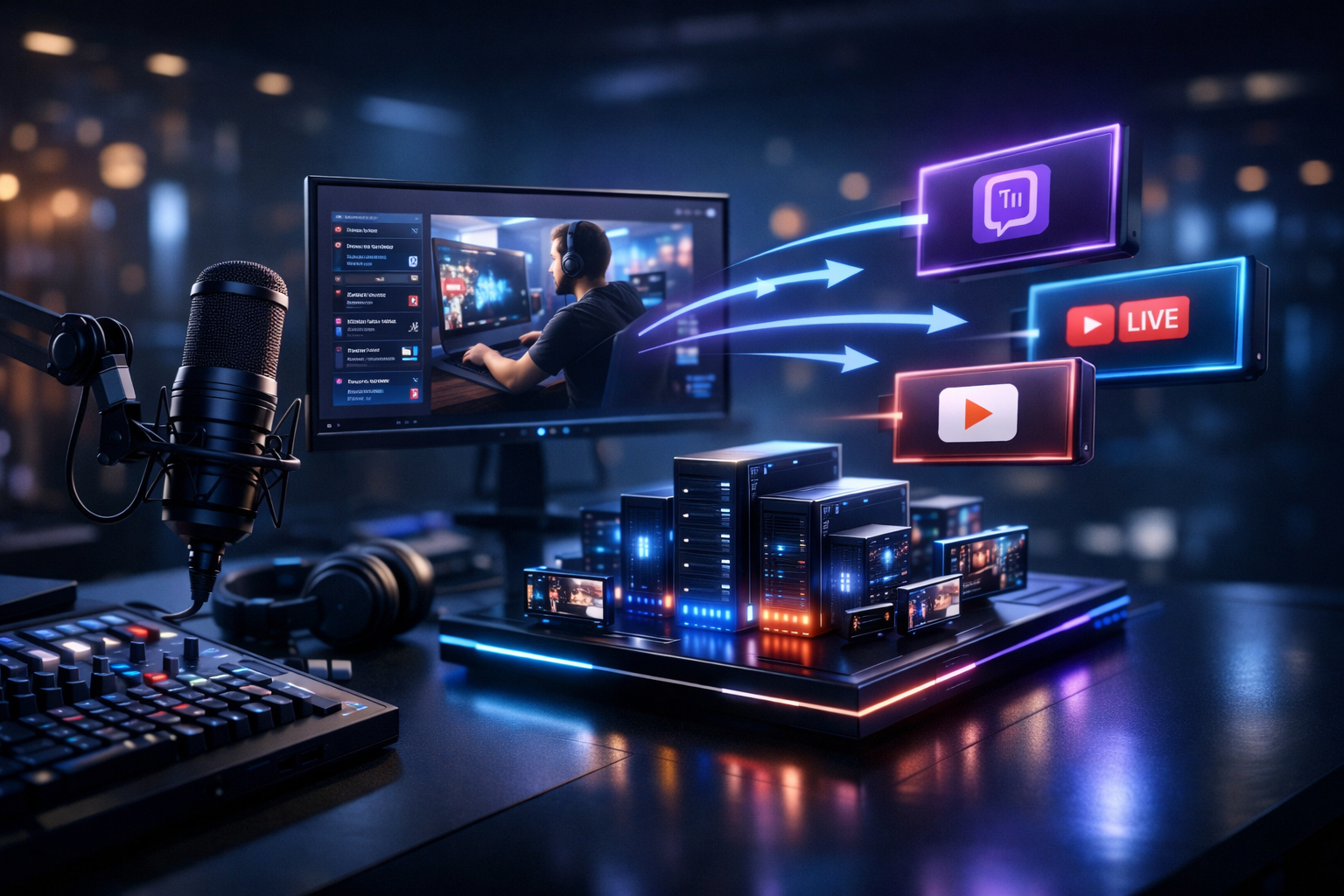
Grow Twitch Audience with Restream Servers: A Step-by-Step How-To for Streamers, DJs & Broadcasters
If you’re a radio DJ, music streamer, podcaster, church broadcaster, school station, or live event streamer, Twitch growth usually hits the same wall: you can’t be everywhere at once, and you can’t afford downtime. A restream server solves that by letting you broadcast once and distribute your show to multiple platforms—while keeping your Twitch channel as the “home base” for followers and community.
In this tutorial, you’ll set up a Shoutcast Net restream workflow designed for stability, consistent audio/video quality, and measurable growth. You’ll learn how to stream from any device to any device, convert any stream protocols to any stream protocols (RTMP, RTSP, WebRTC, SRT, etc), and build an always-on presence using AutoDJ and scheduling.
What you’ll build
- One encoder → Shoutcast Net restream server
- One input → Twitch + additional platforms
- Always-on audio presence with AutoDJ
- Flat-rate streaming vs. Wowza’s expensive per-hour/per-viewer billing
- Reliable delivery with 99.9% uptime, SSL streaming, and up to 1,000 listeners
Table of Contents
- Why restreaming grows your Twitch audience (without extra hassle)
- Pick the right platforms and set simple growth goals
- Set up your Shoutcast Net restream server (flat-rate from $4/mo)
- Configure your encoder: bitrate, keyframe, audio, and stability
- Route your stream to Twitch plus other platforms (multistream flow)
- Use AutoDJ + scheduling to stay live between shows/streams
- Promote, track, and optimize to turn restream viewers into followers
Why restreaming grows your Twitch audience (without extra hassle)
Restreaming is a growth multiplier because it solves the biggest discoverability problem on Twitch: new viewers don’t know you exist yet. When you distribute the same live show to multiple platforms, you increase the number of places people can “bump into” your content—then you funnel them back to Twitch for follows, chat culture, and community.
Action: Use one upstream, many downstreams
Instead of sending separate streams from your computer to each platform (which overloads bandwidth and CPU), you send one clean stream to a restream server. The server does the heavy lifting and pushes to Twitch and beyond. This is especially helpful for:
- Radio DJs doing long sets and talk breaks
- Church broadcasters needing stable Sunday delivery
- School radio stations with rotating hosts and limited tech staff
- Podcasters going live to record and interact
- Live event streamers who can’t risk failed uploads mid-show
Why Shoutcast Net restreaming beats piecing together tools
Many streamers start with a patchwork of services, then get surprised by scaling costs or limitations. Shoutcast Net is built for broadcasters who need predictable bills and stable delivery:
| What you need | Shoutcast Net (flat-rate) | Wowza-style billing / legacy limitations |
|---|---|---|
| Cost predictability | Flat-rate plans starting at $4/month with 100–1,000 listeners (by plan) | Often expensive per-hour/per-viewer billing that grows with your success |
| Reliability | 99.9% uptime and pro streaming infrastructure | DIY stacks are fragile; outages happen at the worst time |
| Security | SSL streaming for modern delivery | Older “legacy Shoutcast” setups may lack modern defaults |
| Workflow | Broadcast once; the server distributes | Multiple platform encodes can overload your upstream |
If your goal is consistent growth, the best move is to reduce technical friction and increase distribution. With the right setup, you can even keep your audience engaged with very low latency 3 sec delivery options where supported—making chat interaction feel immediate.
Pro Tip
Treat Twitch as your “community hub,” but use restreaming as your “discovery engine.” Every extra platform becomes a top-of-funnel that can point viewers back to Twitch with a single, consistent CTA.
Pick the right platforms and set simple growth goals
Multistreaming isn’t “go live everywhere” for the sake of it. It’s picking the platforms that match your show format and your audience’s habits, then setting goals you can measure weekly.
Action: Choose 2–3 platforms that fit your content
A practical starting set is: Restream to Facebook, Twitch, YouTube. That covers community sharing (Facebook), live culture and chat (Twitch), and searchable long-tail discovery (YouTube). From there, adjust based on your niche:
- Music streamers/DJs: Twitch + YouTube (archived sets/clips) + Facebook (local groups and events)
- Church broadcasters: Facebook (members) + YouTube (sermons) + Twitch (youth engagement, if relevant)
- Podcasters: Twitch (live recording) + YouTube (VOD SEO) + Facebook (community)
- School radio: Twitch (student engagement) + YouTube (department visibility) + Facebook (parents/community)
Action: Set one primary KPI and two supporting KPIs
Avoid vanity metrics. Pick goals that translate into Twitch growth:
- Primary KPI: Twitch followers gained per week
- Supporting KPI #1: Average concurrent viewers (Twitch)
- Supporting KPI #2: Click-throughs to Twitch from other platforms (tracked links)
Action: Decide your “Twitch-first” content moments
If everything is identical on every platform, you lose the reason to follow you on Twitch. Build in moments that reward Twitch viewers:
- Live requests/polls handled primarily in Twitch chat
- Subscriber-only track previews, Q&A, or behind-the-scenes segments
- Raid strategy at the end of each show to network within Twitch
Pro Tip
Write one reusable call-to-action you can say every 10–15 minutes: “If you’re watching on Facebook/YouTube, come hang in Twitch chat for requests and the full community vibe.” Consistency beats cleverness.
Set up your Shoutcast Net restream server (flat-rate from $4/mo)
This step is about getting a stable “home” for your stream distribution. Shoutcast Net is designed for broadcasters who want a predictable bill, strong performance, and pro features like SSL streaming, up to 1,000 listeners, and AutoDJ—without the surprise costs common with Wowza’s expensive per-hour/per-viewer billing.
Action: Choose your plan and start your trial
To follow this guide, pick a plan that matches your stream quality and expected audience. You can start with the entry level and scale later.
- Start here: Shoutcast Net shop (plans starting at $4/month)
- Or test first: 7 days trial
- If you’re focused on radio-style audio streams: Shoutcast hosting
- If you need alternative compatibility: Icecast hosting
Action: Gather the connection details you’ll need
Before you touch your encoder, collect the essentials from your service panel/welcome email:
- Server/host (domain or IP)
- Port (streaming port)
- Password / stream key (keep private)
- Mountpoint (common on Icecast) or stream ID (varies by service)
- SSL URL (if you’re embedding players on modern websites)
Action: Plan your “one input” workflow
The entire point of restream infrastructure is: you send one stream up, then the server replicates and delivers it downstream. This is how you stream from any device to any device without re-encoding everywhere.
It also sets you up to handle any stream protocols to any stream protocols (RTMP, RTSP, WebRTC, SRT, etc) depending on your capture source and your destination requirements.
Workflow (high level)

Encoder (OBS / hardware encoder / DJ software)
  --> Shoutcast Net Restream Server (stable ingest + distribution)
        --> Twitch (primary community)
        --> YouTube (search + VOD)
        --> Facebook (sharing + groups)
        --> Website player (SSL embed) / apps / smart speakers
This architecture also helps you avoid “legacy Shoutcast limitations” where older setups were often single-purpose or required extra tools for modern distribution. With Shoutcast Net, you get modern hosting features with a broadcaster-first approach.
Pro Tip
If you’re moving from a pay-as-you-grow platform, run the numbers before you scale. Wowza-style per-hour/per-viewer billing can punish success; Shoutcast Net’s flat-rate unlimited model keeps your cost stable as your Twitch audience climbs.
Configure your encoder: bitrate, keyframe, audio, and stability
Your restream server can only distribute what you send it. A stable encoder configuration is the difference between a clean show and a night of buffering, dropped frames, and out-of-sync audio. This section gives you practical settings for OBS and common broadcast workflows.
Action: Use one stable output instead of multiple heavy encodes
When you multistream by running multiple outputs from your PC, you multiply CPU usage and upload bandwidth. A restream workflow lets you run one high-quality output to the server, then distribute from there—much more stable for DJs, churches, and school stations on shared internet.
Action: Set recommended video settings (OBS baseline)
If you’re streaming video to Twitch (even with a “radio visualizer” scene), start here:
- Resolution: 1280x720 (720p) for reliability; 1920x1080 only if your upstream is strong
- FPS: 30 for talk/radio formats; 60 for fast motion events
- Bitrate (video): 2500–4500 kbps for 720p; 4500–6000 kbps for 1080p (test your upload)
- Keyframe interval: 2 seconds (common requirement across platforms)
- Rate control: CBR
Action: Set audio settings that sound “broadcast-ready”
Audio is your product if you’re a DJ, radio show, or church broadcast. Use settings that preserve clarity and reduce distortion:
- Sample rate: 48 kHz (preferred for video workflows)
- Audio bitrate: 160–192 kbps AAC for music-heavy content
- Limiter: Set a brickwall limiter to prevent clipping on peaks
- Noise gate (optional): Useful for talk segments in untreated rooms
Action: Confirm your upstream bandwidth and add headroom
A simple rule: your upload speed should be at least 2x your total bitrate (video + audio) for stability. If you stream at 4500 kbps video + 192 kbps audio, target 10–12 Mbps upload minimum. If you’re on Wi‑Fi or shared networks, reduce bitrate to protect stability.
Example: A stable “DJ set + camera” profile
OBS Output (example)

Video:
- 1280x720 @ 30 FPS
- CBR 3500 kbps
- Keyframe Interval: 2s
- Encoder: Hardware (NVENC/QuickSync/AMF) if available

Audio:
- AAC, 48 kHz, 192 kbps
- Limiter on master: -1.0 dB ceiling
Once your encoder is stable, you can confidently distribute to Twitch and other platforms. If you’re doing interactive elements (requests, shoutouts, live call-ins), aim for very low latency 3 sec where available and appropriate—then verify your chat delay feels natural.
Pro Tip
Don’t chase maximum bitrate. Chase zero dropped frames for 60 minutes. Consistency retains listeners and viewers—and retention is what turns restream discovery into Twitch follows.
Route your stream to Twitch plus other platforms (multistream flow)
Now you’ll connect the pieces: encoder → Shoutcast Net restream server → Twitch + additional platforms. The goal is to keep your production simple: one “go live” button, consistent quality, and fewer moving parts.
Action: Connect your encoder to your restream server (single ingest)
In your encoder (OBS or hardware), set the streaming destination to your Shoutcast Net ingest endpoint (server/port/password or stream key as provided). This becomes your single upstream connection.
Connection checklist (keep near your stream PC)

- Ingest URL/Host: (from Shoutcast Net panel)
- Port: (from Shoutcast Net panel)
- Stream key / Password: (from Shoutcast Net panel)
- Backup internet plan: hotspot ready (optional but recommended)
Action: Add Twitch as the primary destination
Twitch should be your “main room” because it’s built for live communities: chat, raids, clips, and channel points. In your restream distribution settings, add Twitch with your Twitch stream key, then run a private/unlisted test to confirm audio/video sync.
Action: Add 1–2 discovery destinations (YouTube and/or Facebook)
Add your additional platforms next. A proven starter mix is to Restream to Facebook, Twitch, YouTube. You get:
- YouTube: searchable titles, VOD playback, and evergreen discovery
- Facebook: shares, groups, and local/community visibility
Action: Standardize your titles and overlays across platforms
Consistency builds brand recall. Use a title template that contains the hook + format + schedule:
Title template examples

DJ/Radio:
"[LIVE] Deep House Radio — Requests Open — Every Fri 8PM ET"

Church:
"[LIVE] Sunday Service — Worship + Message — Join Us Weekly"

School station:
"[LIVE] Campus Radio — New Music + Interviews — Weekdays 3PM"
Also ensure your overlays include a clear Twitch CTA (URL or QR) so viewers on other platforms can migrate to Twitch chat. This is how multistreaming becomes Twitch growth rather than split attention.
Action: Reduce latency where it matters
If your show relies on real-time interaction, configure low-latency modes and keep your pipeline lean. The target is very low latency 3 sec where supported—then test on mobile networks (not just your studio Wi‑Fi) to confirm the experience matches what your audience gets.
This approach also positions you for advanced workflows—like contributing a remote feed from a venue and republishing it to multiple endpoints—because Shoutcast Net can handle any stream protocols to any stream protocols (RTMP, RTSP, WebRTC, SRT, etc) depending on your production chain.
Pro Tip
Do one full “dress rehearsal” stream for 20–30 minutes. Verify: audio loudness, no clipping, scene switching, chat delay, and VOD playback. Fixing small issues before launch prevents churn—especially when you’re attracting first-time viewers from other platforms.
Use AutoDJ + scheduling to stay live between shows/streams
Growth loves consistency. If you only go live when you feel like it, your audience never learns your schedule. With AutoDJ and scheduling, you can keep your station active between live shows—so new listeners always find something playing, even when you’re off-air.
Action: Enable AutoDJ for 24/7 continuity
Shoutcast Net’s AutoDJ lets you upload content and run a playlist-driven stream that fills the gaps. This is perfect for:
- Radio DJs: keep music running before/after live sets
- Podcasters: loop best episodes and promos between live recordings
- Churches: play announcements, worship sets, and sermon replays
- Schools: keep the station active during off-hours with student-approved rotations
Action: Build a simple weekly schedule (and stick to it)
Start with a schedule your team can actually maintain. Example:
- Mon–Thu: AutoDJ 24/7 + one live show each night
- Fri: flagship live set (the one you promote hardest)
- Sat: replays/guest mixes on AutoDJ
- Sun: live service/event window + AutoDJ after
Action: Use “handoff” thinking (AutoDJ → Live → AutoDJ)
Your best listener experience is seamless:
- Start AutoDJ early with a “pre-show” playlist
- Go live at a specific time (announced in advance)
- End with a clear CTA and raid (Twitch), then roll back to AutoDJ
This keeps your channel feeling professional and “always on,” which helps convert casual restream viewers into long-term followers. It also reinforces Shoutcast Net’s value for broadcasters: 99.9% uptime, SSL streaming, and up to 1,000 listeners—without the surprise costs associated with Wowza’s expensive per-hour/per-viewer billing.
Pro Tip
Create a short “station ID” audio clip (5–10 seconds) that plays every 10–15 minutes on AutoDJ and during live breaks. Include your Twitch handle and show schedule to keep driving the funnel even when you’re not speaking.
Promote, track, and optimize to turn restream viewers into followers
Restreaming increases reach—but tracking turns reach into growth. Your job is to (1) consistently tell viewers where to follow you, (2) make it easy to click, and (3) measure which platforms and shows drive the most Twitch follows.
Action: Use tracked links for every destination
Create one link per platform so you can see what’s working. Use UTM parameters (or a link shortener with analytics). Example structure:
Tracked link examples

Facebook post:
https://twitch.tv/YourChannel?utm_source=facebook&utm_medium=restream&utm_campaign=live_show

YouTube description:
https://twitch.tv/YourChannel?utm_source=youtube&utm_medium=restream&utm_campaign=live_show
Action: Build a repeatable promo checklist (pre, live, post)
Pre-stream (30–120 minutes before):
- Post a “going live” announcement with your tracked Twitch link
- Pin the post (Facebook) or community post (YouTube) if available
- Update your Twitch title and schedule panel
During stream (every 10–15 minutes):
- Say a clear CTA: “Follow on Twitch to request tracks and join chat”
- On non-Twitch platforms, post a comment with the tracked Twitch link
- Clip one highlight for later reposting
Post-stream (same day):
- Post a short highlight + “next live” schedule
- Thank new followers and point to the next show
- Review analytics: follows gained, average viewers, click-throughs
Action: Optimize one variable per week
Don’t change everything at once. Pick one improvement and run it for a week:
- Stream time: try 30 minutes earlier/later
- Hook: open with your best 60 seconds (track drop, headline, prayer point, guest intro)
- CTA placement: on-screen QR vs. pinned comment vs. verbal reminder
- Reliability: lower bitrate slightly to eliminate drops
Action: Scale confidently with flat-rate infrastructure
As your audience grows, the last thing you want is a platform that penalizes you with escalating usage costs. Shoutcast Net’s flat-rate unlimited model is built for growth—so you can focus on content, not invoices. Compared to Wowza’s expensive per-hour/per-viewer billing (and the headaches of legacy Shoutcast limitations), you get a broadcaster-friendly path: $4/month entry plans, 7 days trial, 99.9% uptime, SSL streaming, and 100–1,000 listeners (by plan).
When you’re ready, expand your workflow so you can stream from any device to any device—from a church booth PC, a DJ laptop, or a hardware encoder at a live venue—then distribute using any stream protocols to any stream protocols (RTMP, RTSP, WebRTC, SRT, etc) as your production needs evolve.
Pro Tip
If your restream analytics show one platform consistently sends viewers who actually follow on Twitch, double down there. Post more native promos, collaborate with creators in that ecosystem, and keep your Twitch CTA identical every time to reinforce behavior.
Next step: launch your restream growth setup
You can get this running today with a stable encoder profile and a Shoutcast Net plan.