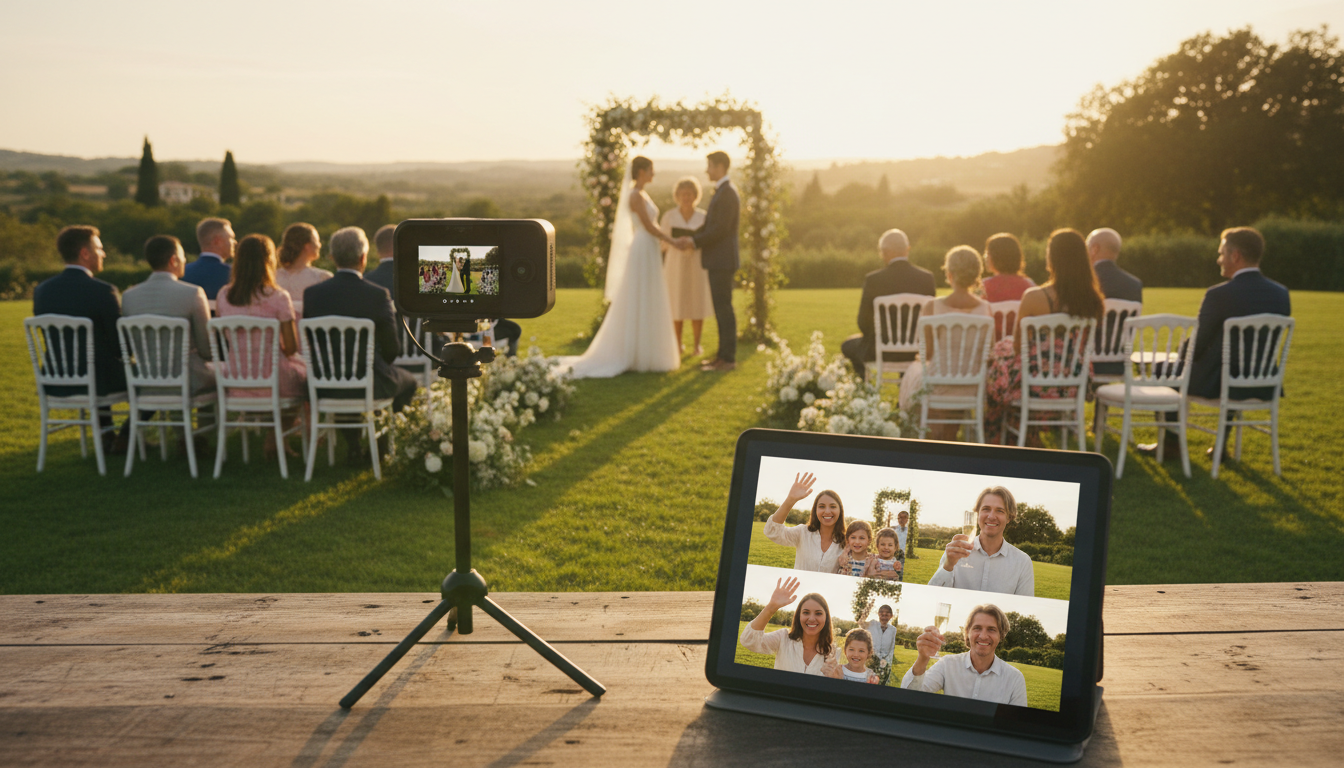
Destination weddings are a dream come true for couples, but a logistical challenge for guests. Friends, elderly relatives, and colleagues often can't make the trip, leaving them disconnected from the special day. This creates a massive, and profitable, opportunity for professional broadcasters, DJs, and live event streamers like you.
Offering destination wedding live streaming as a service can be a lucrative addition to your business. However, it comes with unique hurdles: unreliable internet at remote venues, the need for professional-grade gear on the go, and ensuring a private, seamless viewing experience for remote guests. Get it wrong, and you could ruin a once-in-a-lifetime moment. Get it right, and you'll create an unforgettable experience that clients will rave about.
This ultimate guide will walk you through every step of setting up a flawless, professional destination wedding live stream in 2026. We'll cover everything from gear selection to on-site testing and, most importantly, choosing the right streaming platform that won't break the bank with surprise fees. Let's dive in.
Step 1: Choose a Flat-Rate Streaming Platform
Your streaming platform is the backbone of your entire operation. For an event like a wedding, where viewer count and viewing duration are unpredictable, your choice of billing model is absolutely critical. This is where many broadcasters make their first, and most costly, mistake.
Many enterprise platforms, most notoriously Wowza, operate on a per-viewer, per-hour, or data-usage billing model. Imagine this scenario: a couple shares their wedding stream link more widely than expected. Instead of 50 viewers, 250 people tune in. The ceremony runs a little long. With a platform like Wowza, you could be facing a bill for hundreds, if not thousands, of dollars that you didn't budget for. This variable cost makes it impossible to offer a fixed-price package to your clients, creating financial risk for your business.
The professional solution is a flat-rate streaming server. This is the core of the Shoutcast Net model. We provide up to 1,000 listeners and unmetered bandwidth for a fixed, predictable monthly fee. Our plans start at an incredibly affordable $4/month. You pay one price, and it doesn't matter if 10 people or 1,000 people watch, or if they watch for 30 minutes or 3 hours. Your cost remains the same.
Why Shoutcast Net is Built for Event Streaming
Beyond the crucial flat-rate pricing, our platform is designed for the reliability and flexibility that live events demand:
- 99.9% Uptime SLA: We guarantee your stream will be online, giving you and your clients peace of mind.
- Up to 1,000 Listeners/Viewers: Never worry about hitting a viewer cap.
- SSL Streaming Included: Secure your stream with HTTPS links at no extra cost, which builds trust and improves compatibility.
- Global CDN: Our network ensures a smooth, buffer-free experience for guests watching from anywhere in the world.
- No-Risk Trial: You can test our entire platform with a full-featured 7 days trial to ensure it's the perfect fit before you commit.
Pro Tip: Price Your Services with Confidence
Using a flat-rate platform like Shoutcast Net is a powerful business advantage. You can confidently offer your clients an all-inclusive live streaming package for a fixed price. This simplifies your proposals, eliminates financial risk, and makes your services far more attractive than a competitor who has to pass on unpredictable data charges.
Step 2: Select Your Camera and Audio Gear
While a smartphone can work in a pinch, offering a professional service means using dedicated gear. Your clients are paying for a high-quality production that captures the sights and, most importantly, the sounds of their day. For weddings, audio quality is more important than video quality. If viewers can't hear the vows, the stream is a failure.
Camera Options (Good, Better, Best)
- Good (Budget): A modern flagship smartphone (iPhone 15 Pro, Samsung S24 Ultra) mounted on a gimbal (like a DJI Osmo Mobile). These can produce excellent video in good light, but you'll need a separate solution for professional audio input.
- Better (Prosumer): A mirrorless camera with a clean HDMI output (e.g., Sony a6400, Canon R10). This gives you superior image quality, better low-light performance, and the ability to use different lenses for creative shots. You'll connect this to your computer via a capture card (like an Elgato Cam Link 4K).
- Best (Professional): A dedicated camcorder (like a Canon XA series) or a multi-camera setup. Using two or more cameras connected to a video switcher (like a Blackmagic ATEM Mini) allows you to switch between a wide shot of the ceremony and a tight shot of the couple, creating a broadcast-quality production.
The All-Important Audio Gear
Do not rely on your camera's built-in microphone. You need to capture clear, intimate audio from multiple sources.
- Primary Audio (Vows): A wireless lavalier microphone system is non-negotiable. Place one microphone on the officiant and, if possible, a second on the groom. This will capture the vows, rings exchange, and "I do's" with perfect clarity. The Rode Wireless GO II or DJI Mic are excellent, easy-to-use options.
- Ambient Audio (Atmosphere): A separate condenser or shotgun microphone placed discreetly near the front row or a speaker can capture guest reactions, music, and the overall ambiance of the venue.
- Audio Mixer: A small field mixer (like a Zoom H6 or a Saramonic AX1) allows you to combine the lavalier mics and the ambient mic, control their levels independently, and send one clean audio feed to your streaming encoder.
Don't forget accessories: sturdy tripods, extra batteries and power banks for everything, long HDMI and audio cables, and gaffer tape to secure everything safely.
Pro Tip: Monitor Your Audio Religiously
Always wear headphones connected to your audio mixer or encoder's output during the entire stream. This is the only way to know for sure what your remote audience is hearing. You'll be able to catch issues like wind noise, wireless interference, or a mic that's been accidentally muted before they ruin the moment.
Step 3: Test Your Internet Connection On-Site
This is the single most critical step for any remote broadcast. A destination wedding venue—be it a beach in Mexico, a vineyard in Italy, or a barn in the countryside—is not a controlled studio environment. You must not assume the internet will "just work."
Schedule a site visit specifically to test the internet connectivity at the exact location of the ceremony and reception. Your primary concern is upload speed. Run multiple tests using services like Speedtest.net and Fast.com.
| Stream Quality | Recommended Minimum Upload Speed |
|---|---|
| 720p @ 30fps | 3-4 Mbps |
| 1080p @ 30fps | 5-6 Mbps |
| 1080p @ 60fps | 7-8 Mbps |
Your tested upload speed should be consistently double your target streaming bitrate to account for fluctuations.
Internet Source Hierarchy
- Venue Ethernet: A wired ethernet connection is always preferable to Wi-Fi. Ask the venue coordinator if a hardline is available. Test it thoroughly.
- Venue Wi-Fi: Be extremely cautious. Venue Wi-Fi is often slow, congested with guest traffic, and may have "captive portals" (login pages) that can interfere with streaming hardware. If you must use it, test it at the time of day the wedding will occur.
- Cellular Hotspot (Your Best Bet): A dedicated 4G/5G mobile hotspot is often the most reliable solution. Before the event, research which cellular carrier has the best coverage at the venue's address. Bring hotspots from two different carriers (e.g., Verizon and T-Mobile) as a backup.
- Bonded Cellular (The Pro Standard): For high-stakes events, professionals use cellular bonding devices (e.g., LiveU Solo, Teradek VidiU Go). These units combine multiple internet sources (e.g., 2 cellular modems + Wi-Fi) into a single, unbreakable connection. This is the ultimate guarantee of a stable stream.
Pro Tip: Perform a "Soak Test"
A 30-second speed test isn't enough. During your site visit, connect your encoder and run a real test stream to your Shoutcast Net server for at least 30-45 minutes. This "soak test" will reveal hidden problems like connection throttling, packet loss, or instability that only appear over time. It's better to find these issues during a test than during the vows.
Step 4: Configure Your Streaming Encoder (like OBS)
Your encoder is the software or hardware that takes the video from your camera and the audio from your mixer, packages them together, and sends them to your Shoutcast Net server. For most broadcasters, the best choice is OBS Studio—it's free, incredibly powerful, and the industry standard.
Basic OBS Studio Configuration
Download and install OBS on a powerful laptop. A modern laptop with a dedicated graphics card (NVIDIA or AMD) is highly recommended as it can handle video encoding without stressing the main processor.
- Add Your Sources: In the "Sources" panel, click the "+" button. Add a "Video Capture Device" to bring in your camera feed (via its capture card). Add an "Audio Input Capture" to bring in the audio from your USB mixer or microphone interface.
- Configure Stream Settings: Go to `File > Settings > Stream`.
- Service: Select `Custom...`
- Server: Enter the RTMP URL provided in your Shoutcast Net control panel. It will look something like `rtmp://IP_ADDRESS:PORT/live`.
- Stream Key: Enter the unique stream key (sometimes called stream password or mount password) from your Shoutcast Net panel.
- Configure Output Settings: Go to `File > Settings > Output`. Set the "Output Mode" to "Advanced."
- Encoder: If you have an NVIDIA graphics card, choose `NVIDIA NVENC H.264`. This is far more efficient than `x264` (CPU encoding).
- Rate Control: Set to `CBR` (Constant Bitrate).
- Bitrate: Enter the bitrate you decided on based on your internet test (e.g., `4500` Kbps for 1080p).
- Keyframe Interval: Set to `2` seconds.
One of the major advantages of a modern streaming platform like Shoutcast Net over legacy systems is protocol flexibility. We are built to handle virtually any professional stream format. Our system can transcode any stream protocols to any stream protocols (RTMP, RTSP, WebRTC, SRT, etc), so whether you're using OBS with RTMP or a hardware encoder sending SRT for lower latency, our servers can handle it seamlessly.
Pro Tip: Build Professional Scenes
Don't just stream your raw camera feed. In OBS, create multiple "Scenes." Have a "Starting Soon" scene with a nice graphic, the couple's names, and some pre-show music playing. Create your main "Live Ceremony" scene with the camera and audio. Finally, create a "Stream Ended" scene. Switching between these provides a much more polished and professional experience for viewers.
Step 5: Set Up Your Shoutcast Net Server
Compared to the complexities of on-site gear and internet, configuring your Shoutcast Net server is the easiest part of the process. Our powerful, modern control panel is designed to be intuitive for broadcasters of all skill levels.
After signing up for your Shoutcast Net plan (or starting your 7 days trial), you'll log into your dashboard. All the critical information you need is presented clearly:
- Server IP & Port: The address your encoder sends the stream to.
- Stream Key / Mount Password: The "password" that authorizes your encoder to stream to your server.
- Player Links: Quick links to your web player and direct stream URLs.
You'll simply copy and paste these details into your encoder's settings as described in Step 4. That's it. Once you click "Start Streaming" in OBS, your stream is live on our network.
Leveraging Powerful Features for a Better Wedding Stream
Our platform goes beyond just relaying your stream. You can use our built-in tools to create a more engaging and robust experience:
- AutoDJ: Before the ceremony starts, you don't want your early-arriving virtual guests to stare at a silent screen. You can use our powerful AutoDJ system to schedule and play a playlist of romantic music or even pre-recorded messages from the couple. When you're ready to go live, you can seamlessly transition from the AutoDJ to your live feed.
- Restreaming to Social Media: The couple might want the stream on their Facebook page or a private YouTube link. Instead of trying to stream to multiple destinations from your potentially fragile on-site internet connection, you can send one stable stream to Shoutcast Net. Then, from our dashboard, you can Restream to Facebook, Twitch, YouTube, and other platforms with a few clicks. Our powerful servers handle the distribution, protecting your primary stream.
Pro Tip: Monitor from Anywhere
The Shoutcast Net control panel is web-based, meaning you or a team member can monitor the stream's health from any device with an internet connection. While you're on-site managing the camera, a remote assistant can keep an eye on the listener count, bandwidth graphs, and server status, acting as a second pair of eyes to ensure everything is running smoothly.
Step 6: Create a Private Viewing Page for Guests
Never just send guests a raw stream URL. It's impersonal, can be difficult for non-technical users to open, and looks unprofessional. The best practice is to create a simple, elegant, and private webpage that serves as the "virtual venue" for remote guests.
You can create this page on your own business website, or as a standalone page hosted elsewhere. The key is to make it a central hub for the entire virtual experience.
What to Include on the Viewing Page
- The Embedded Player: In your Shoutcast Net control panel, we provide a simple copy-and-paste HTML5 video player code. This player is responsive and works on all modern browsers and devices, ensuring you can stream from any device to any device without compatibility headaches.
- Event Details: Clearly display the couple's names, the wedding date, and the start time of the ceremony (including the time zone!).
- A Welcome Message: A short note from the couple welcoming their virtual guests.
- Live Chat or Guestbook: Embed a simple live chat service (like Chatroll) or a link to a digital guestbook (like Kudoboard). This allows guests to interact and share their congratulations, making them feel more involved.
- Password Protection: For privacy, the page should be password-protected. You can easily do this with your website builder's settings or a simple `.htaccess` file. Share the password only with invited guests.
Example Player Embed Code
Your embed code from Shoutcast Net will look something like this. You just copy it and paste it into your webpage's HTML.
<!-- Shoutcast Net HTML5 Player -->
<video id="player" class="video-js" controls preload="auto" width="100%" height="auto" poster="YOUR_POSTER_IMAGE.jpg" data-setup='{}'>
    <source src="https://your-server.shoutcastnet.com/live/stream/playlist.m3u8" type="application/x-mpegURL">
    <p class="vjs-no-js">
        To view this video please enable JavaScript, and consider upgrading to a web browser that
        <a href="https://videojs.com/html5-video-support/" target="_blank">supports HTML5 video</a>
    </p>
</video>
<script src="https://vjs.zencdn.net/8.10.0/video.min.js"></script>
Pro Tip: Add a Link to the Registry
Subtly include a link to the couple's wedding registry or a "honeymoon fund" on the viewing page. Remote guests often feel left out and are looking for ways to participate and contribute. Making it easy for them to send a gift is a thoughtful touch that both the guests and the couple will appreciate.
Step 7: Run a Full Test Stream Before the Big Day
We've mentioned testing before, but a final, full, end-to-end dress rehearsal is non-negotiable. This test should happen a day or two before the wedding and simulate the real event as closely as possible.
Your Final Test Checklist
Go to the ceremony site with all your gear. Every single piece. Set it all up exactly as you will on the wedding day.
- Gear Setup: Position your camera(s), set up your tripods, and run all your cables.
- Audio Check: Mic up a volunteer (or yourself) and test your wireless lavaliers. Check levels for both speech and ambient sound in your mixer.
- Internet Connection: Connect to your primary internet source (e.g., your cellular hotspot). Do not use the venue's Wi-Fi if you don't plan to use it on the day.
- Start Streaming: Start your stream in OBS and let it run for at least 20-30 minutes continuously.
- Verify on Viewing Page: While the stream is running, open your private viewing page on multiple devices—a laptop, an iPhone, and an Android phone. Check that the video and audio are clear and in sync on all of them.
This final test is your last chance to catch any problems. Is there a hum in the audio? Is the camera angle right? Does the cellular signal drop at a certain time of day? This is when you find out.
During this test, pay attention to the delay between the real-life action and what you see on the player. With Shoutcast Net's modern infrastructure, you can achieve a very low latency 3 sec stream, which is crucial for making remote viewers feel like they are truly there in the moment, not watching a delayed recording.
Pro Tip: Always Record Locally
In OBS, you can stream and record simultaneously with almost no extra performance cost. In `Settings > Output > Recording`, configure a high-quality local recording. This is your ultimate backup. If, for any catastrophic reason, the internet fails completely, you will still have a pristine, high-resolution recording of the ceremony that you can upload for the couple and guests to watch later. It's a simple click that can save the entire project.
Your Partner for Professional Event Streaming
Adding destination wedding live streaming to your portfolio is a smart move in today's connected world. It's a high-value service that sets you apart from the competition. Success hinges on meticulous planning, reliable gear, and—most importantly—a robust, predictable, and powerful streaming platform that works with you, not against you.
Shoutcast Net is engineered for precisely this kind of professional use. With our flat-rate, unlimited-viewer model, you can price your services confidently. With advanced features like our AutoDJ, multi-platform restreaming, and protocol flexibility, you have the tools to deliver a flawless production. And with our guaranteed uptime and low-latency delivery, you can provide an experience that truly connects remote guests to the moment.
Stop worrying about surprise bandwidth bills from platforms like Wowza and focus on what you do best: creating amazing live productions.
Start Your 7-Day Free Trial TodayNo credit card required. Experience the Shoutcast Net difference.